
Quick Start
Ultimo aggiornamento: 10/13/2025
🏁 Quick Start Guide - Crafter.ai This guide will help you take your first steps in creating your first chatbot with Crafter.ai in less than 15 minutes....
Chatbot quick start guideChatbot guideguide AI agentcrafter guidecrafter.ai user guide
🏁 Quick Start Guide - Crafter.ai
This guide will help you take your first steps in creating your first chatbot with Crafter.ai in less than 15 minutes.
📋 Prerequisites
- Registered account on Crafter.ai
- Updated web browser (Chrome, Firefox, Safari, Edge)
- Stable internet connection
🚀 First Access
1. Accessing the Platform
- Go to crafter.ai
- Click on "Login"
- Enter your credentials
- Check your work team in the dropdown menu at the top
2. Main Dashboard
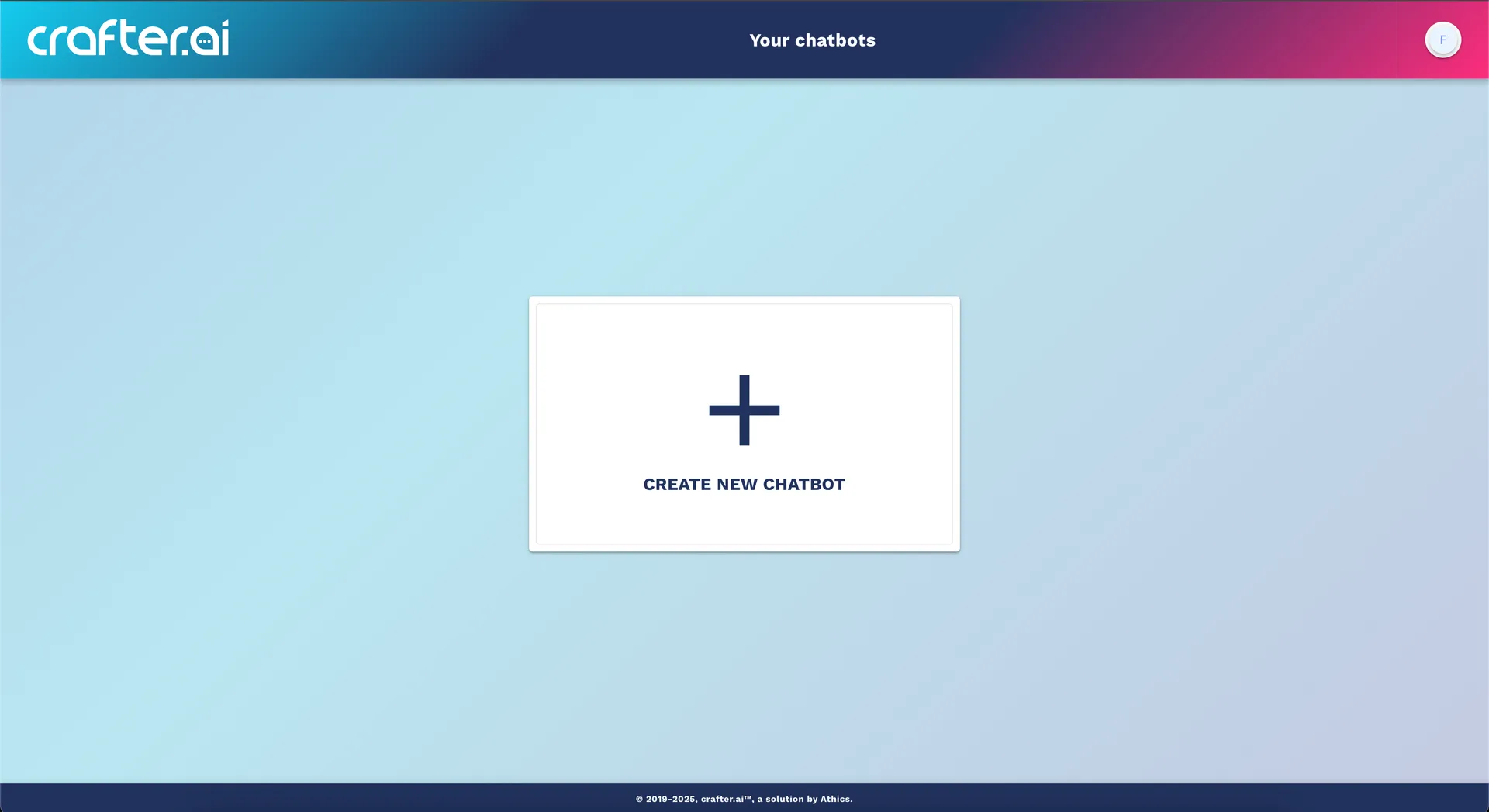
Once logged in, you will be in the main dashboard where you can:
- View your existing chatbots
- Create new chatbots
🤖 Creating Your First Chatbot
Step 1: New Chatbot
- Click on the "+ Create New Chatbot" button and enter chatbot name and language.
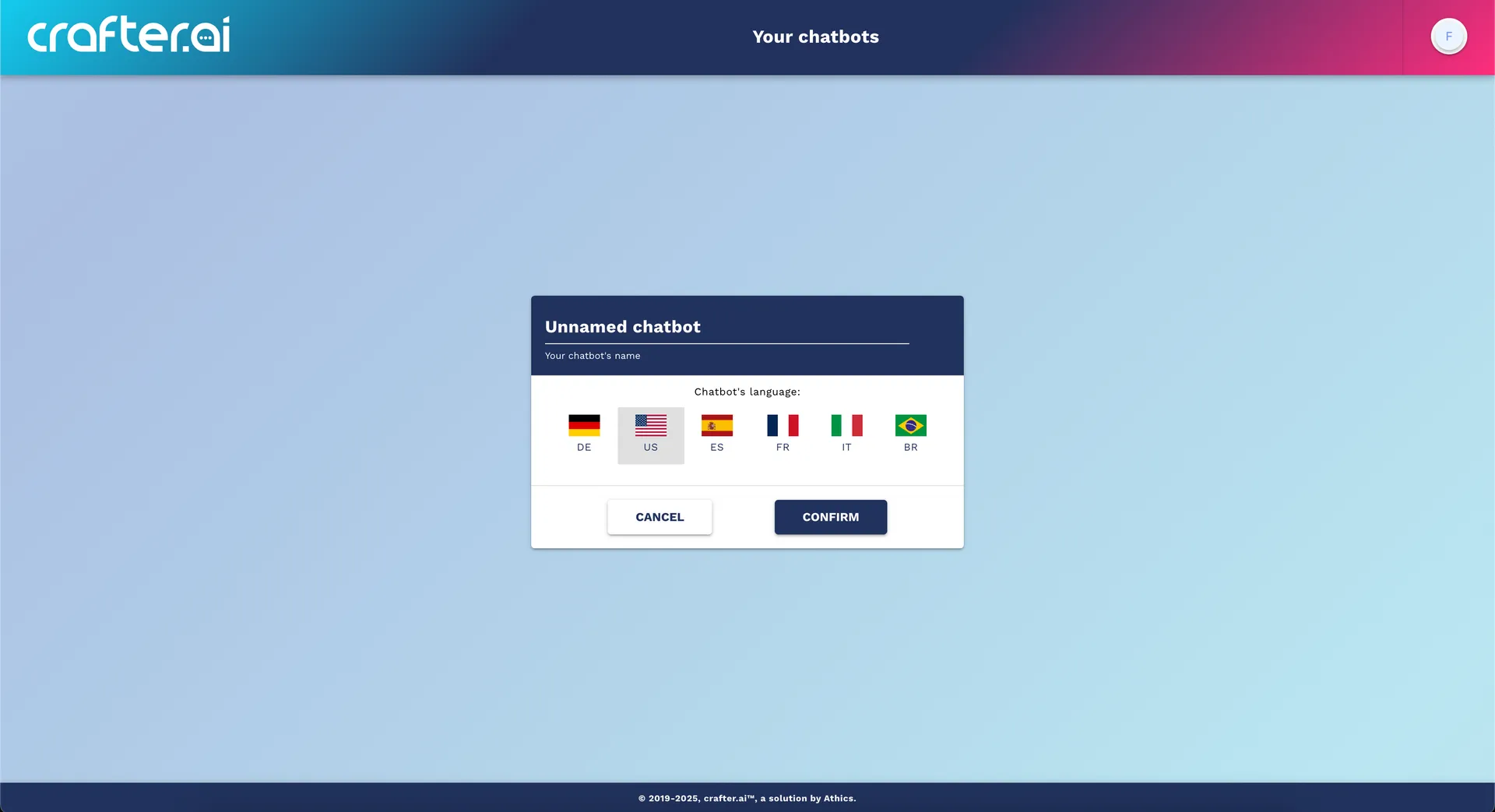
Basic Information
- Chatbot Name: Choose a descriptive name (e.g., "Sales Assistant")
- Language: Select the primary language of the chatbot
The Configuration Wizard will open with 4 main steps:
Step 2: Setup (Initial Configuration)
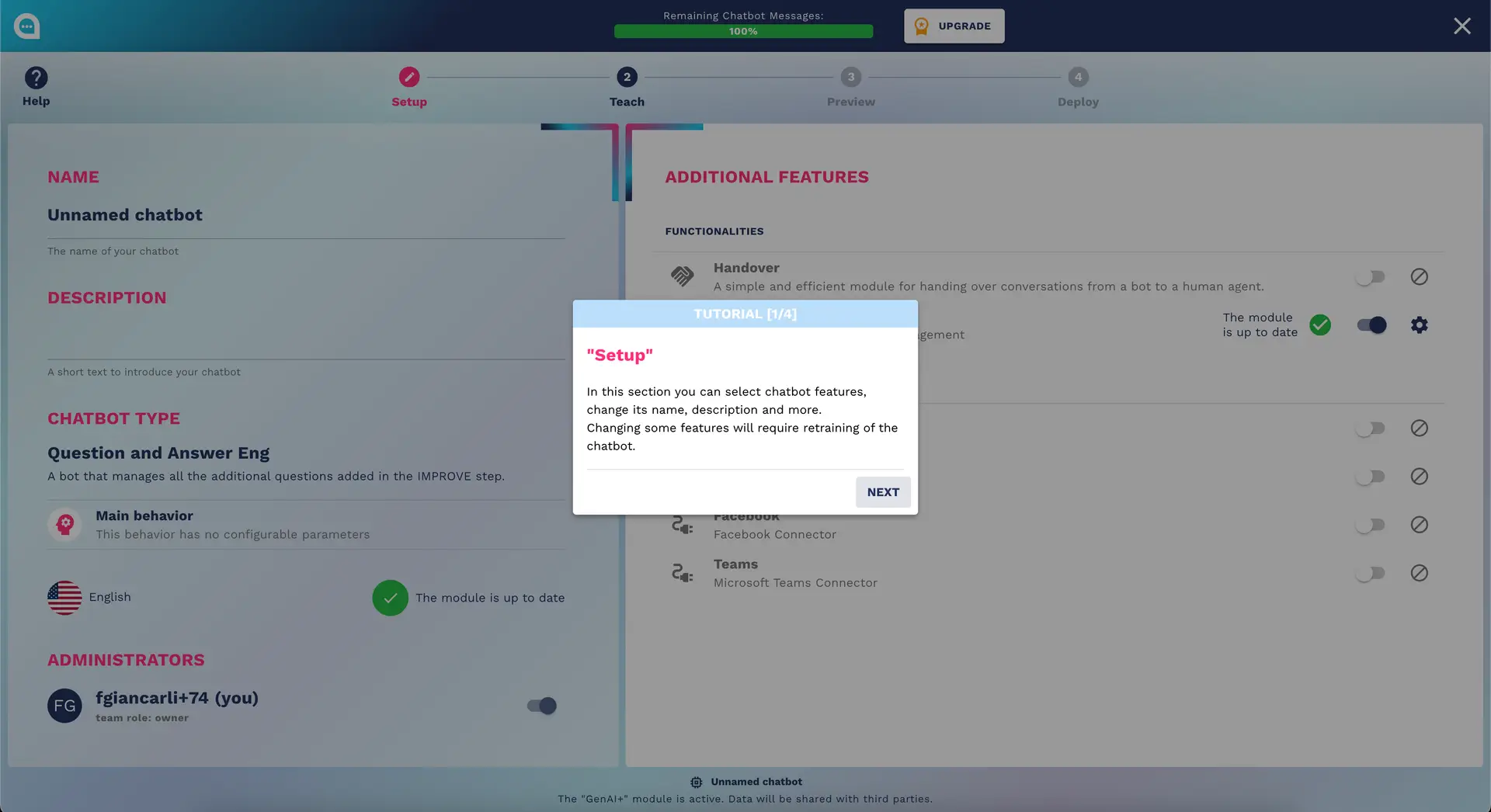
- 🔧 Setup
- 🎓 Teach
- 👁️ Preview
- 🚀 Deploy
Additional Features
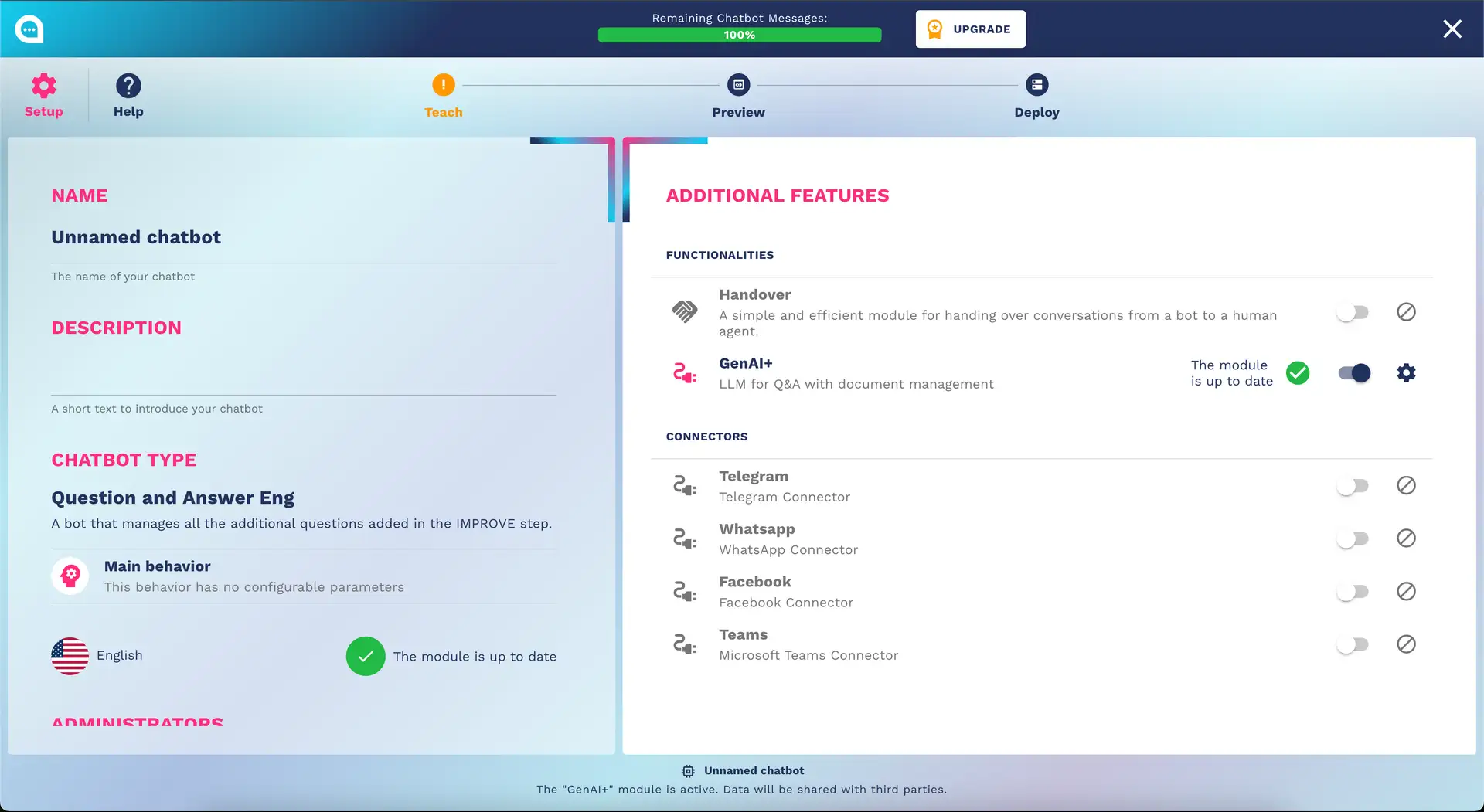
Activate the features you need:
- ✅ Handover to Human: Transfer to a human operator (with Lead Collection).
- ✅ Social Connection: Telegram, Facebook, Whatsapp, Microsoft Teams.
Step 3: Teach (Teaching)
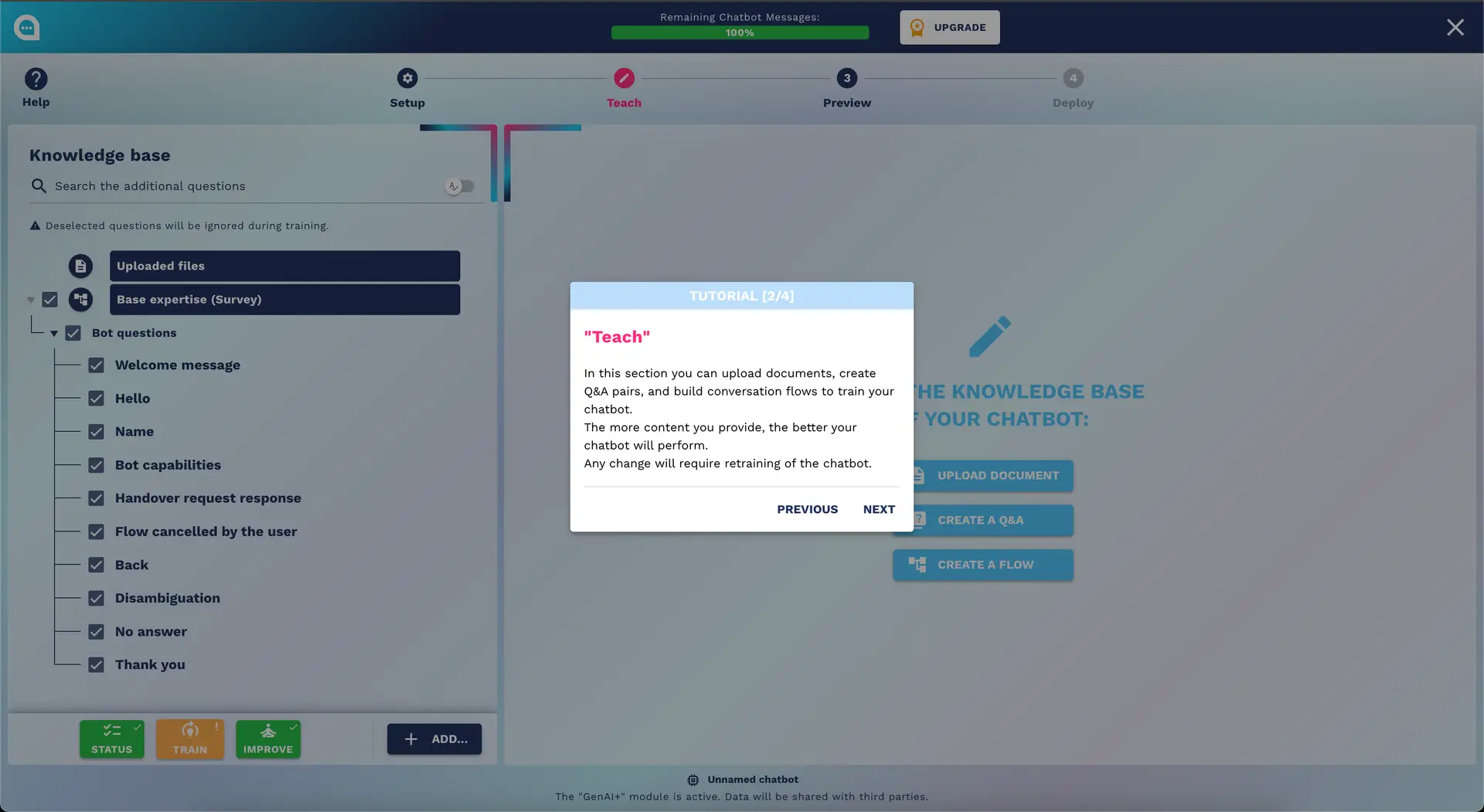
Base Expertise
- Complete the guided survey by answering questions about your services/products
- Each answer helps the chatbot understand your business
- ⚠️ Important: Complete all questions to proceed
Custom Expertise
- Click on "+ New Q&A" to add custom questions
- Question: Write the question the user might ask
- Answer: Provide the answer the chatbot should give
- Utterances: Add variations of the same question
Practical Example:
Question: What are your opening hours?
Answer: We are open from Monday to Friday from 9:00 AM to 6:00 PM,
         and on Saturday from 9:00 AM to 1:00 PM. Closed on Sunday.
Utterances:
- What time do you open?
- When are you open?
- Store hours
Training the Chatbot
- Before testing, click on "Train Chatbot"
- Wait for the training to complete (2-5 minutes)
- ✅ The status will change to "Trained" when ready
Step 4: Preview (Preview and Test)
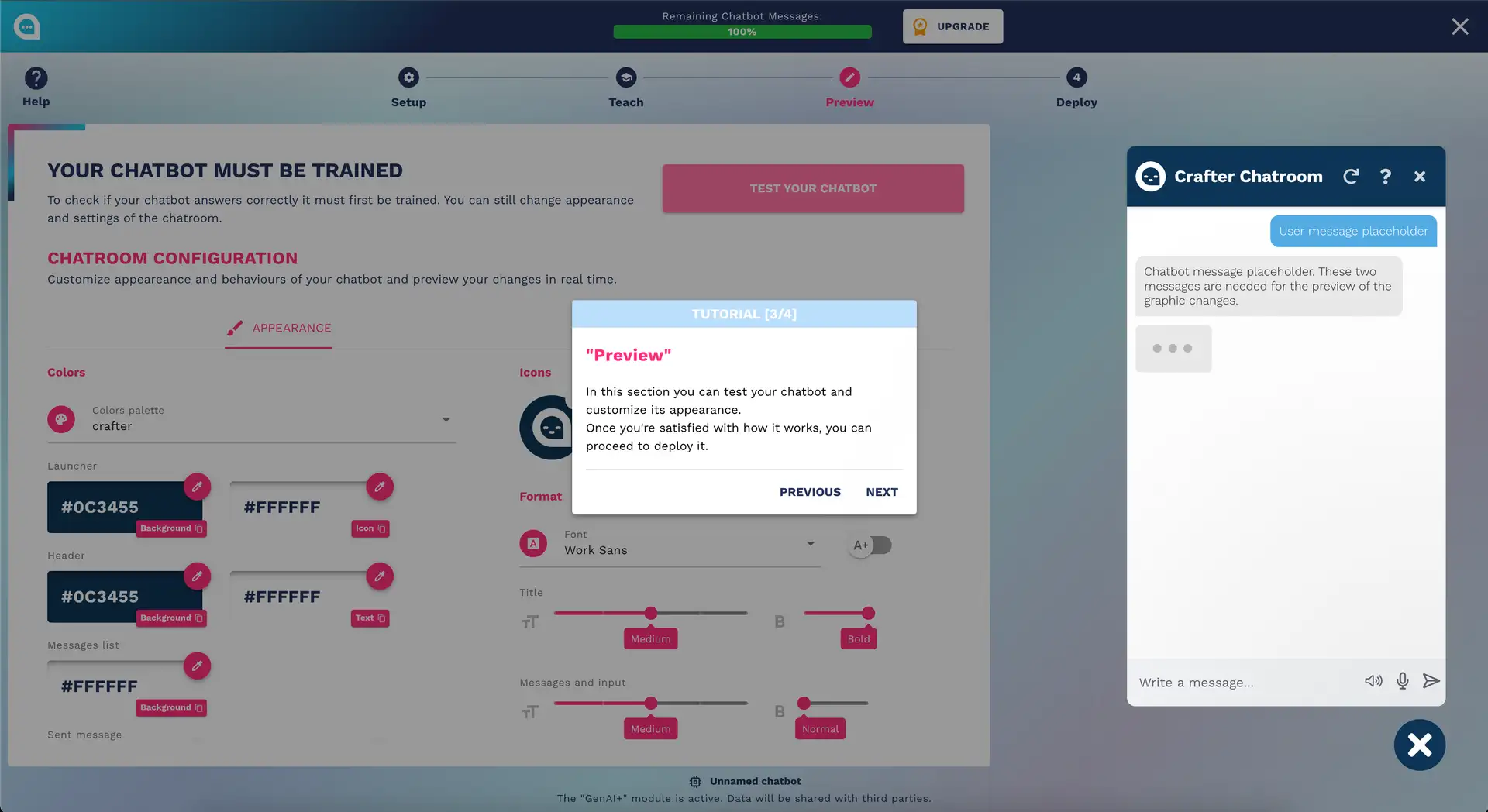
Interactive Testing
- Use the chat widget on the right to test the chatbot
- Try different questions to verify the responses
- Test both survey questions and custom ones
Customizing Appearance
- Colors: Customize the colors for your brand
- Font: Choose the most suitable font
- Icons: Select the chatbot icon
Step 5: Deploy (Publishing)
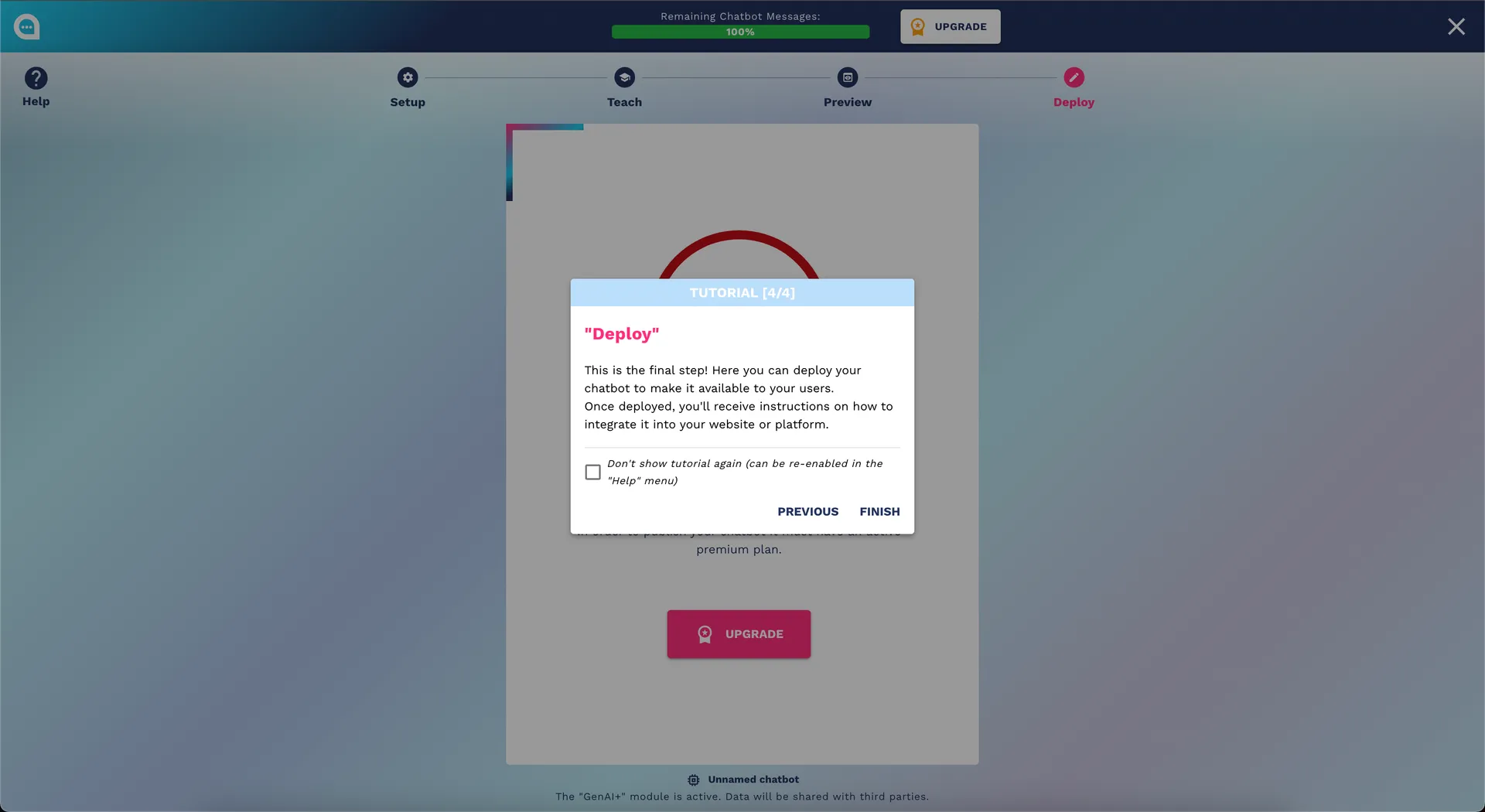
Publishing the Chatbot
- Click on "Deploy Chatbot"
- Wait for the server to be created (3-8 minutes)
- ✅ Upon completion, you will receive the integration code
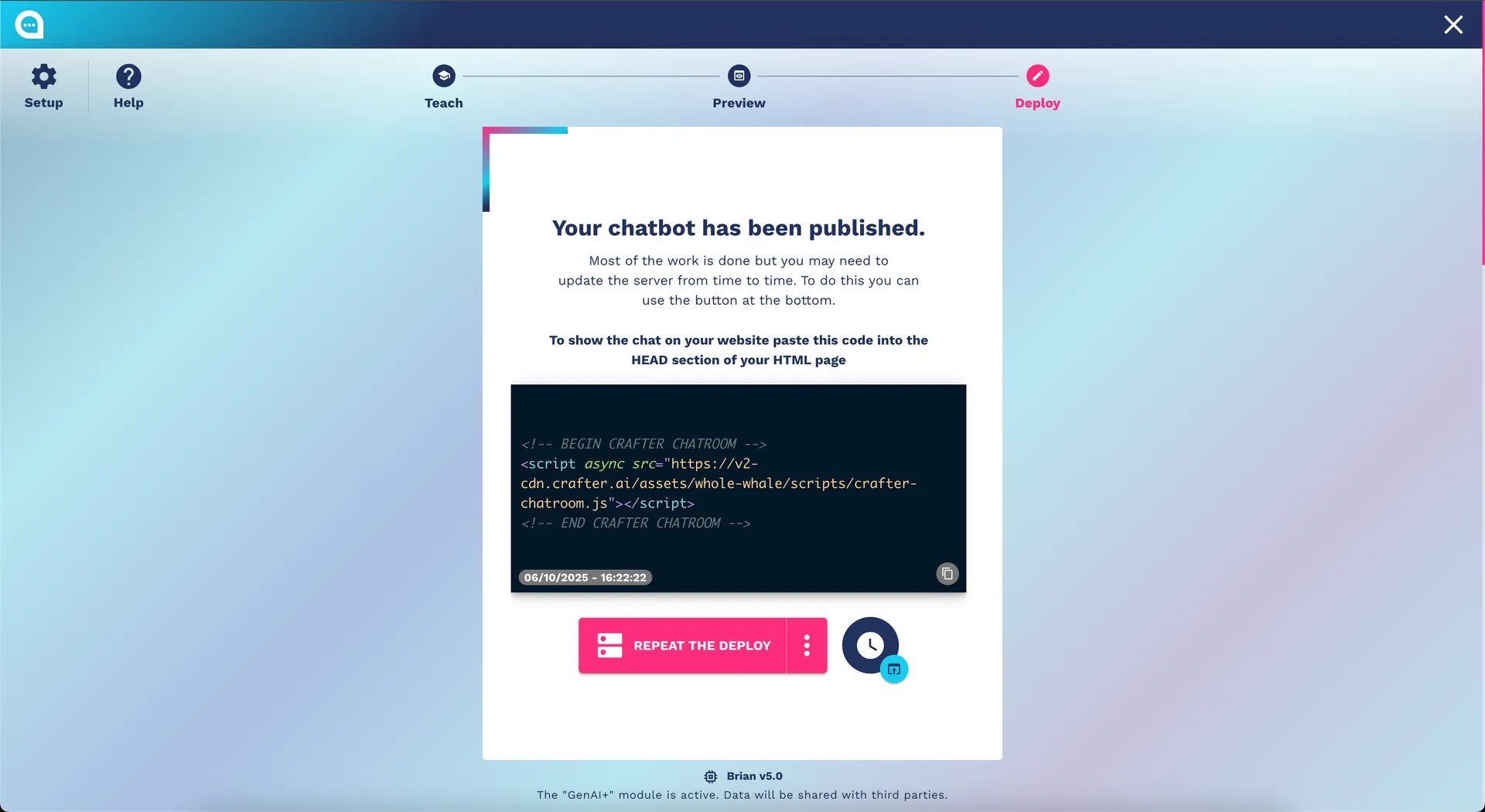
Integration into the Website
Copy and paste this code into the <head> section of your website:
        <!-- BEGIN CRAFTER CHATROOM -->
        <script async src="YOUR_LINK"></script>
        <!-- END CRAFTER CHATROOM -->
✅ First Chatbot Checklist
- Account created and verified
- Chatbot name and description set
- Base survey completed
- At least 5 custom Q&A created
- Chatbot successfully trained
- Conversation tests conducted
- Appearance customized
- Chatbot published (deployed)
- Code integrated into the website
🎯 Next Steps
Now that you have created your first chatbot, you can:
- 📊 Monitor Performance: Check conversations in the "Improve" section
- 🔧 Add Features: Explore the Flow Designer for advanced conversations
- 📚 Upload Documents: Upload PDF, DOCX to expand the knowledge base
- 🤝 Invite Team: Add colleagues to collaborate
❓ Common Issues
The chatbot does not respond correctly
- Check that the training is complete
- Ensure all survey questions have been completed
- Add more variations (utterances) to your questions
Error during deployment
- Check that the plan is active and not expired
- Ensure you have not reached the message limit
- Make sure the chatbot has been trained
The widget does not appear on the site
- Verify that the code is in the
<head>tag - Check the browser console for JavaScript errors
- Ensure the chatbot is in the "Deployed" state
🆘 Need Help?
- 📧 Email: support@crafter.ai
- 💬 Chat: Brian Chatbot
⏱️ Estimated time for the first chatbot: 10-15 minutes
🎯 Outcome: Functional chatbot integrated into your website