
Tagging Documents
User Manual - Knowledge Base Tagging System The tagging system allows for the organization and categorization of documents uploaded to the chatbot's knowle...
User Manual - Knowledge Base Tagging System
The tagging system allows for the organization and categorization of documents uploaded to the chatbot's knowledge base. Tags enable:
- Organizing documents by thematic categories
- Selectively filtering chatbot responses based on context
- Creating dynamic conversational flows with contextualized content
- Improving the accuracy of the bot's responses
Overview of the Tagging System
What is a Tag?
A tag is a colored label that can be assigned to documents in the knowledge base. Each tag is characterized by:
- Label: Descriptive name of the tag (max 150 characters)
- Color: Distinctive color chosen from a predefined palette
Available Colors
The system offers 8 predefined colors for tags:
- 🔴 Red (#e53935)
- 🟡 Amber (#ffca28)
- 🟡 Yellow (#ffee58)
- 🟢 Green (#66bb6a)
- 🔵 Blue (#42a5f5) - default color
- 🟣 Indigo (#5c6bc0)
- 🟣 Purple (#ab47bc)
- ⚪ Gray (#bdbdbd)
Tag Management
Accessing the Tag Manager
- Navigate to the Teach section of the wizard
- Go to the Uploaded Documents table
- Click the "Manage Tags" button NB: You must have at least 1 document uploaded to see the tags.
Creating a New Tag
- Enter the tag name
- Type the name in the "New Tag" field
- Maximum length: 150 characters
- The field cannot be empty
- Select the color
- Click on one of the 8 available colors
- The default color is blue
- A white checkmark indicates the selected color
Note: You can create a maximum of 8 tags per chatbot.
Modifying an Existing Tag
Changing the Name
- In the Tag Manager, click on the tag name field
- Edit the text
- Press Enter or click outside the field to save
Changing the Color
- In the Tag Manager, view the color grid under the tag name
- Click on the desired new color
- The change is immediate
- A white checkmark indicates the currently selected color
Note: If the name exceeds 150 characters, an error will be displayed and saving will be blocked.
Deleting a Tag
- In the Tag Manager, click the "Delete" button under the tag
- Confirm the deletion in the popup that appears
- Click "Yes" to confirm
- Click "No" to cancel
IMPORTANT - Deletion Limitations:
- You cannot delete a tag if it is used in one or more nodes of the Flow Designer
- The system shows a warning tooltip: "This tag is used in one or more nodes of the flow designer and cannot be deleted"
- You must first remove the tag from the flows, then it can be deleted
Assigning Tags to Documents
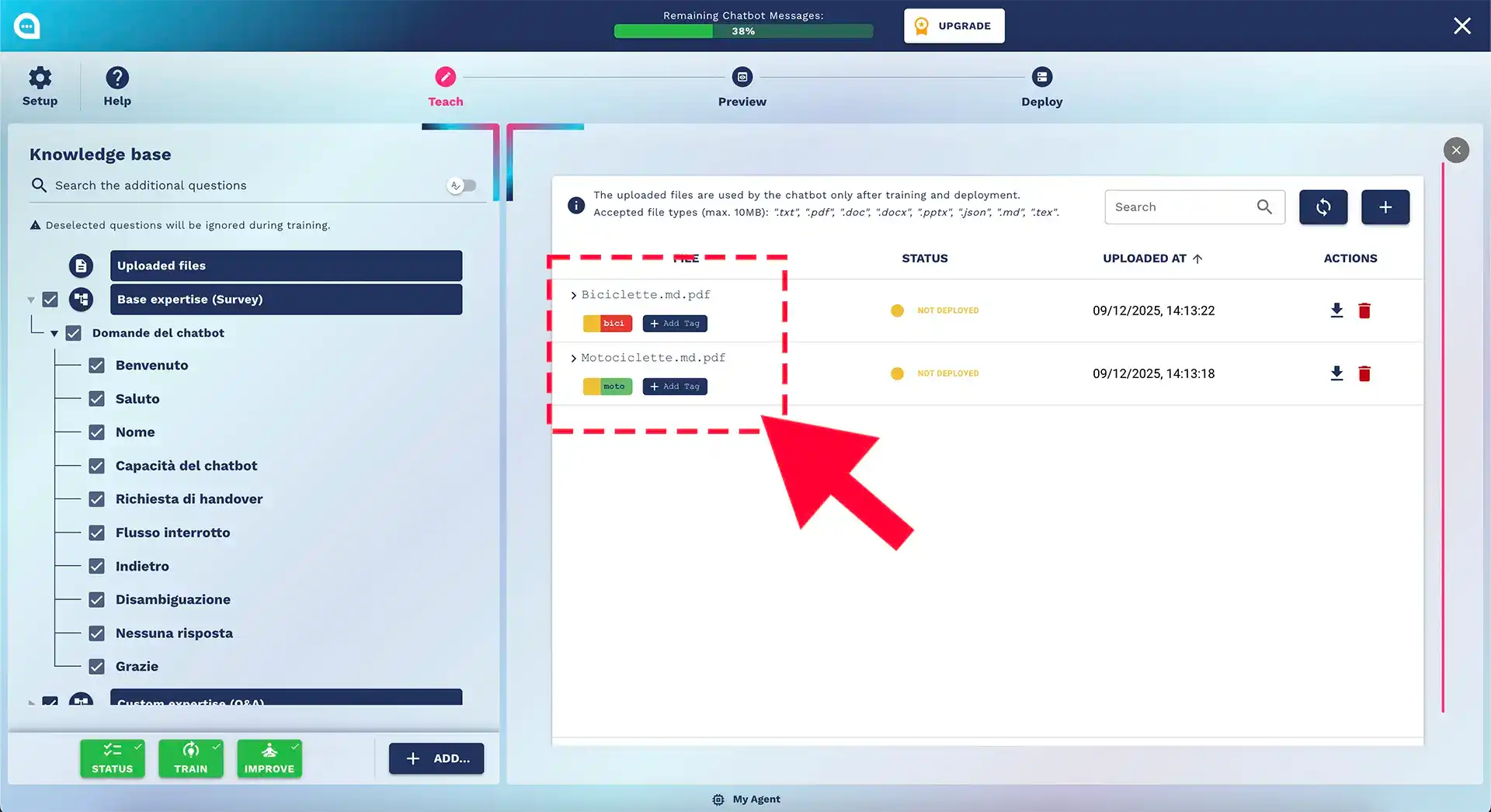
Viewing Tags on a Document
In the "Uploaded Documents" table, each document shows:
- The assigned tags as colored chips under the file name
- The distinctive color of each tag
- A status indicator on the left side of each tag
- A "X" button to remove the tag (when available)
Adding Tags to a Document
- Open the assignment dialog
- In the document row, click the chip "+ Add Tag"
- Select existing tags
- In the "Select existing tags" section, click on the tags you want to assign
- Selected tags show a white checkmark in the corner
- You can select multiple tags at once
Create a new tag (optional)
- In the "Create new tag" section, enter the name
- Select the desired color
- Click "Create"
- The new tag is created and automatically selected
Confirm the assignment
- Click "OK" to confirm
- Click "Cancel" to cancel the changes
Notes:
- You cannot assign tags that are already present on the document
- The limit of 8 total tags per chatbot also applies here
- When the limit is reached, the creation of new tags is disabled
Removing a Tag from a Document
- Click the "X" button on the tag chip
- Confirm the removal in the dialog that appears:
- Message: "Do you want to remove the tag [tag_name] from the document [file_name]?"
- Click "Yes" to confirm
Limitations
- Not all tags can be removed immediately
- The "X" button only appears on removable tags
- Tags in certain states may not show the removal button
Visual States of Tags on Documents
Each tag shows a colored status indicator on the left side:
| Status | Color | Meaning | Tooltip |
|---|---|---|---|
| Untrained | Gray | The tag is not in use | "The tag is not in use. Train and publish the chatbot" |
| Unpublished | Orange | In use only in testing | "The tag is used only by the test chatbot. Publish the chatbot to use the tag online" |
| Published | Green | In use online and in testing | "The tag is in use both in testing and online" |
| Scheduled for Removal | Gray | Scheduled deletion | "Scheduled removal of tag from the document" |
How to read the states:
- Hover over the colored indicator to see the explanatory tooltip
- The indicator is located on the inner left edge of the tag chip
- The states reflect the training and deployment lifecycle of the bot
Using Tags in the Flow Designer
The Flow Designer offers two specific nodes for working with tags. These nodes allow for the creation of dynamic conversations that utilize filtered content from the knowledge base.
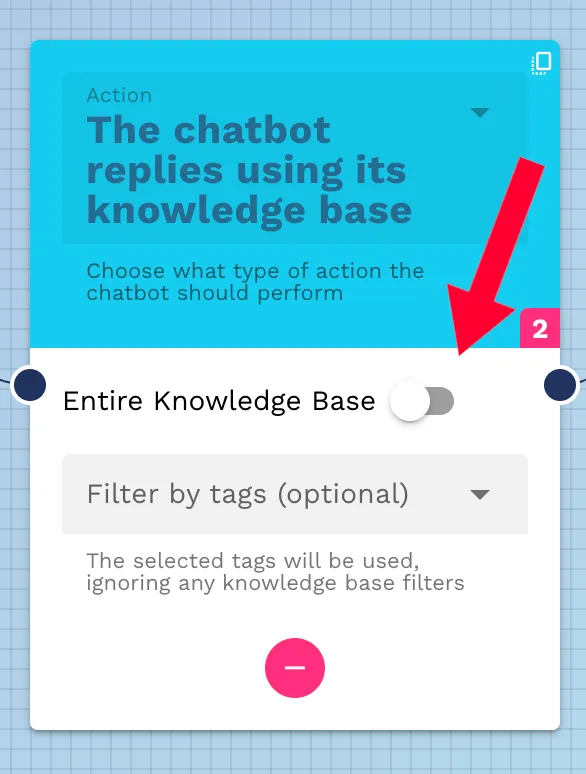
Node: "Bot Replies with Filtered KB by Tag"
This node allows the chatbot to respond using only documents with specific tags.
How to Configure It
- Add the node to the flow
- In the Flow Designer, select this node from the list of available nodes
"All Files" Mode
- Activate the toggle "Entire Knowledge Base"
- The bot will use the entire knowledge base
- Ignores any previously set tag filters
"Filter by Tag" Mode
- Deactivate the "Entire Knowledge Base" toggle
- The "Filter by tag (optional)" selector is activated
Select tags
- Click on the selection field
- Choose one or more tags from the list
- Selected tags appear as colored chips in the field
"Select All" Option In the tags dropdown, the "Select All" option allows for quickly adding all available tags
Node Behavior
- With selected tags: The bot responds using ONLY the documents that have at least one of the selected tags
- Without selected tags (empty field): The behavior depends on the bot's configuration
- "All files" active: Uses the entire knowledge base, ignoring any tag filters from the conversation
Example of Use
Scenario: A chatbot for a company with documents on "Products" and "Services"
1. User says: "Tell me about the products"
2. Node: Bot Replies with Filtered KB
   - Selected tags: [Products]
   - The bot responds using only documents tagged "Products"
3. User continues to ask questions
4. The filter remains active for the next responses
Search and Filters
Searching for Tags in Flows
The search system allows you to find tags used in flows:
Access the search bar
- In the Teach section, use the question search bar
- Field: "Search in the Knowledge base"
Search results
- Category: "Tags in flow nodes"
- Shows the flows that contain nodes with specific tags
Glossary
- Tag: Colored label for categorizing documents
- Knowledge Base (KB): Set of documents uploaded to the chatbot
- Flow Designer: Visual editor for creating conversational flows
- Node: Element of the flow designer that performs an action
- Training: Process of the chatbot learning from documents
- Deployment: Publishing the chatbot in production
- Chip: UI element that visually represents a tag
- Utterance: Variation of a question/phrase
- QA: Question-Answer pair
- Debounce: Delay before executing a repeated action
FAQ
Q: Can I create more than 8 tags?
A: No, the limit is 8 tags per chatbot, determined by OpenAI specifications.
Q: What happens if I delete a tag used in a flow?
A: The system blocks the deletion showing an error message. You must first remove the tag from the flows.
Q: Are tags visible to the end user?
A: No, tags are internal organizational tools. The user only sees the filtered responses from the chatbot.
Q: Can I add custom colors?
A: No, colors are limited to the predefined palette of 8 colors.
Q: How do I find which flows use a specific tag?
A: Use the search function in the Teach section, which will show the flows in the category "Tags in flow nodes".
Q: Do I need to retrain after modifying tags?
A: Yes, any modification to tags (creation, assignment, removal) requires new training and deployment to be effective on the production bot.
Q: Can I assign the same tag to multiple documents?
A: Yes, a tag can be assigned to any number of documents.
Q: What does "All files" mean in the BotRepliesWithKb node?
A: It means that the bot will use the entire knowledge base ignoring any tag filters from the conversation. It does not mean "use all tags".
Q: Is the removal of a tag from a document immediate?
A: The removal is recorded immediately but becomes effective on the chatbot only after new training and deployment.
Q: Can I rename a tag after creating it?
A: Yes, you can modify the name and color of a tag at any time from the Tag Manager.