
Customization and Preview
🎨 Customization and Preview - Crafter.ai This comprehensive guide will help you customize the appearance of your chatbot and test it before publishing thr...
🎨 Customization and Preview - Crafter.ai
This comprehensive guide will help you customize the appearance of your chatbot and test it before publishing through the Preview step.
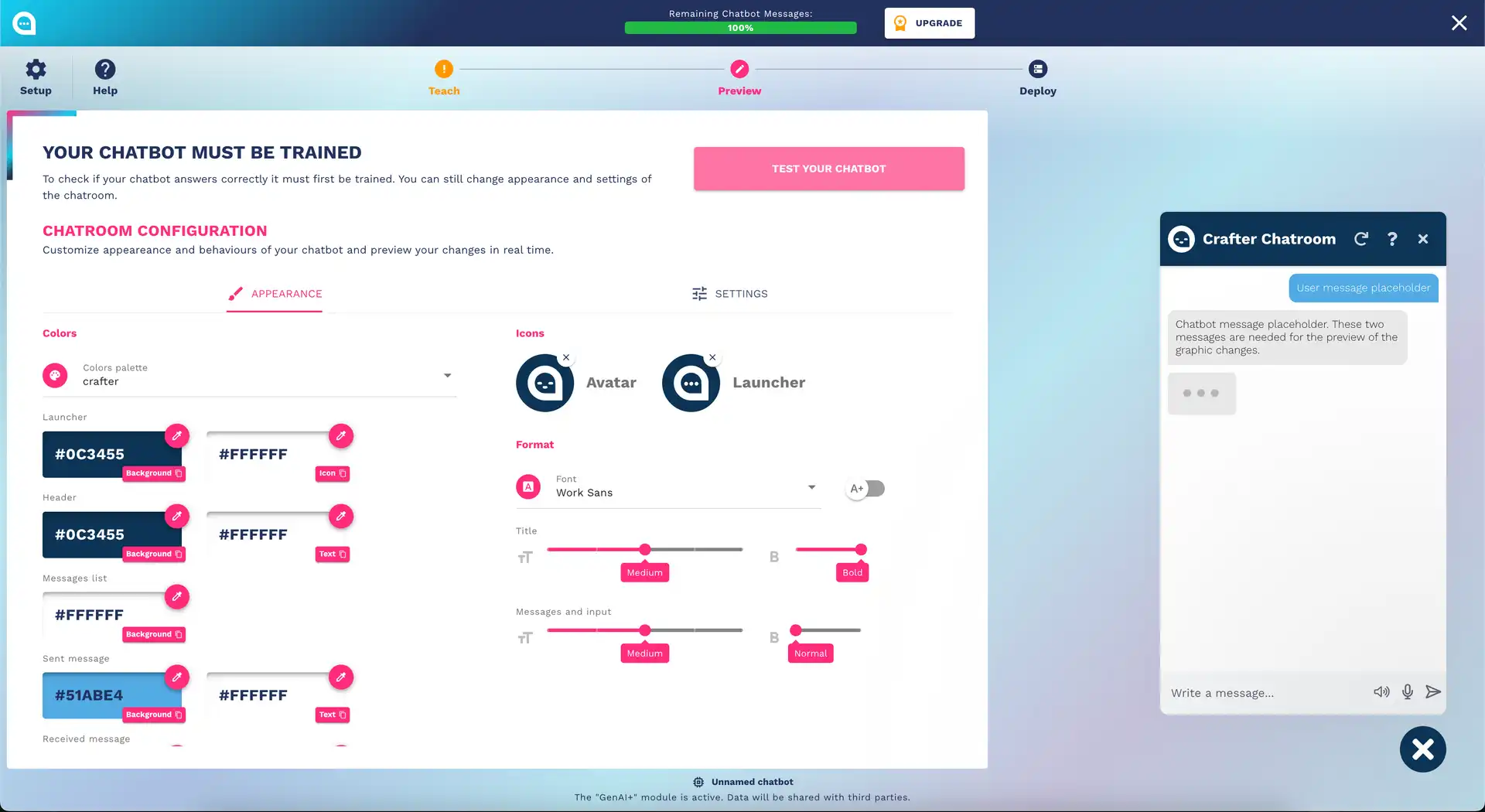
🎯 Overview of the Preview Step
The Preview step allows you to:
- 🧪 Test the chatbot interactively
- 🎨 Customize the appearance (colors, fonts, layout)
- ⚙️ Configure behaviors of the chatroom
- 📱 See the preview in real-time
- 🔍 Validate functionalities before deployment
🧪 Interactive Chatbot Testing
Prerequisites for Testing
Before you can effectively test:
- ✅ Training completed: The chatbot must be trained
- ✅ Knowledge Base populated: At least the basic Q&A configured
- ✅ Survey completed: All survey questions answered
Integrated Test Widget
Accessing the Test
- In the Preview step, on the right you will find the chat widget
- If you don't see the widget: click on "Test Your Bot"
- If the bot is not trained: click first on "Train Bot"
Chatbot States
🔴 Not Trained → You need to train the chatbot
🟡 Training... → Wait for completion (2-5 minutes)
🟢 Ready → Ready for testing
🟠 Outdated → New training needed after changes
Effective Testing Strategies
1. Test Base Functionality
Questions to test:
✅ Greetings: "Hi", "Good morning", "Hello"
✅ Main FAQ questions
✅ Help requests: "Help", "I don't understand"
✅ Off-topic questions
✅ Invalid inputs: numbers, symbols, emojis
2. Test User Journey
Simulate real user paths:
E-commerce Scenario:
1. "Hi" → Greeting
2. "What products do you sell?" → Catalog
3. "How much is shipping?" → Shipping info
4. "How can I order?" → Ordering process
5. "I want to speak to an operator" → Handover
3. Test Edge Cases
Limit cases to verify:
- Very long messages (500+ characters)
- Messages with only emojis 🤔😊🎉
- Inputs in different languages
- Ambiguous or multiple questions together
- Inappropriate requests
4. Test Integration Points
If you have configured integrations:
- Do API calls work?
- Is human handover active?
- Does lead collection work?
- Is calendar booking operational?
Interpreting Test Results
Correct Responses ✅
The bot understood and responded appropriately. Action: None, continue testing.
Partial Responses ⚠️
The bot understood but the response is incomplete. Action: Improve the Q&A or add information.
Incorrect Responses ❌
The bot misunderstood the question. Action: Add utterances or create new Q&A.
No Response ❓
The bot does not know how to respond. Action: Create new Q&A to fill the gap.
🎨 Appearance Customization
Appearance Tab
Color Management
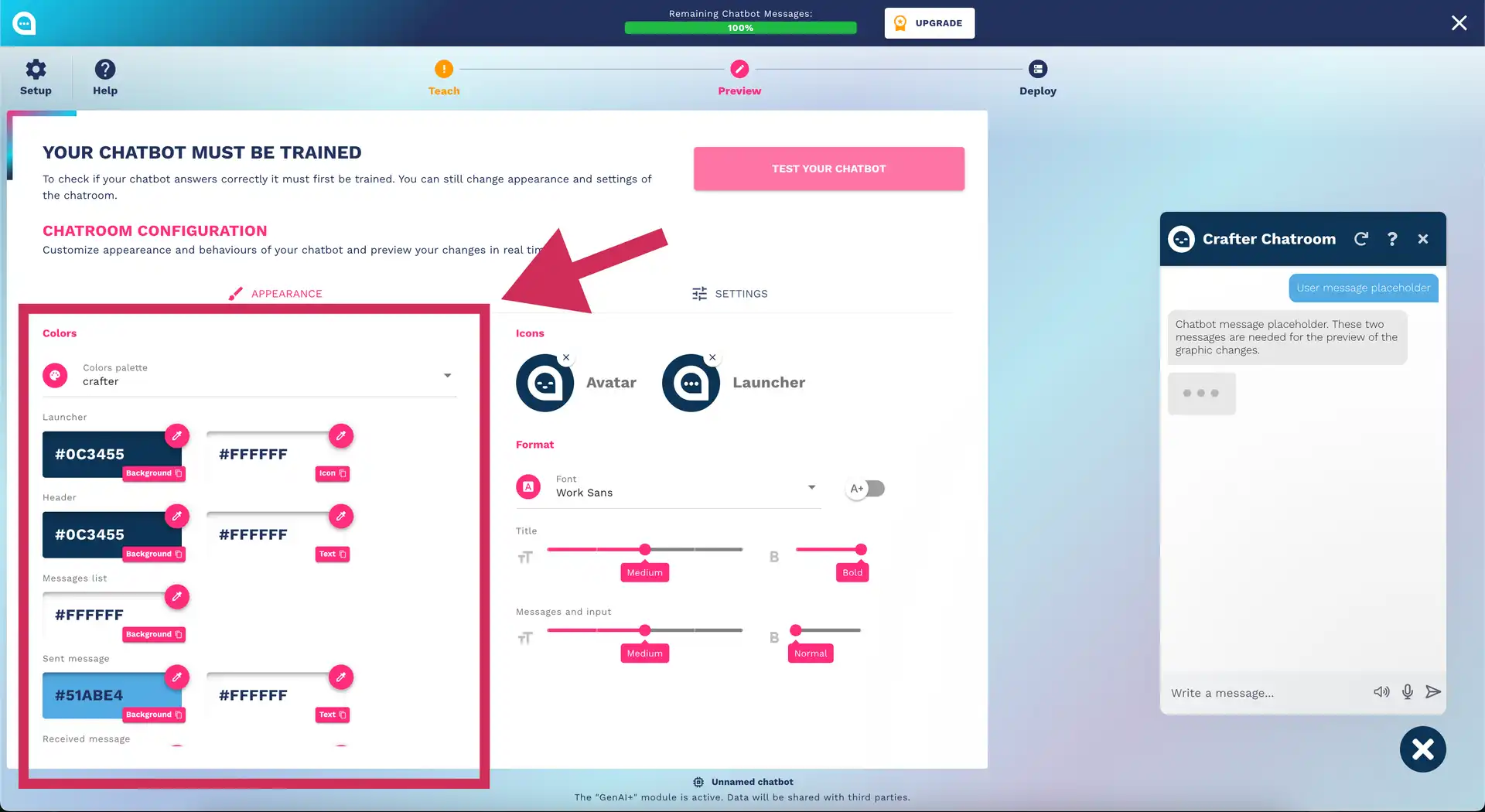
Default Palettes
Crafter.ai offers harmonious color palettes:
- Corporate Blue: Professional and reliable blue
- Warm Orange: Energetic and friendly orange
- Natural Green: Relaxing and natural green
- Elegant Purple: Sophisticated and creative purple
- Classic Gray: Elegant and neutral gray
Custom Color Personalization
Customizable elements:
🎨 Background Chatroom: Main background
🎨 Primary Color: Main brand color
🎨 Secondary Color: Support color
🎨 Text Color: Main text color
🎨 User Message: User message color
🎨 Bot Message: Bot message color
🎨 Accent Color: Button and link color
Best Color Practices:
- Contrast: Ensure readability (minimum 4.5:1)
- Brand Consistency: Use your brand colors
- Accessibility: Consider color blindness and low vision
- Psychology: Consider the psychological impact of colors
Color Tools
Palette generators:
- Adobe Color
- Coolors.co
- Material Design Color Tool
Contrast checkers:
- WebAIM Contrast Checker
- Stark (Figma plugin)
Typography and Fonts
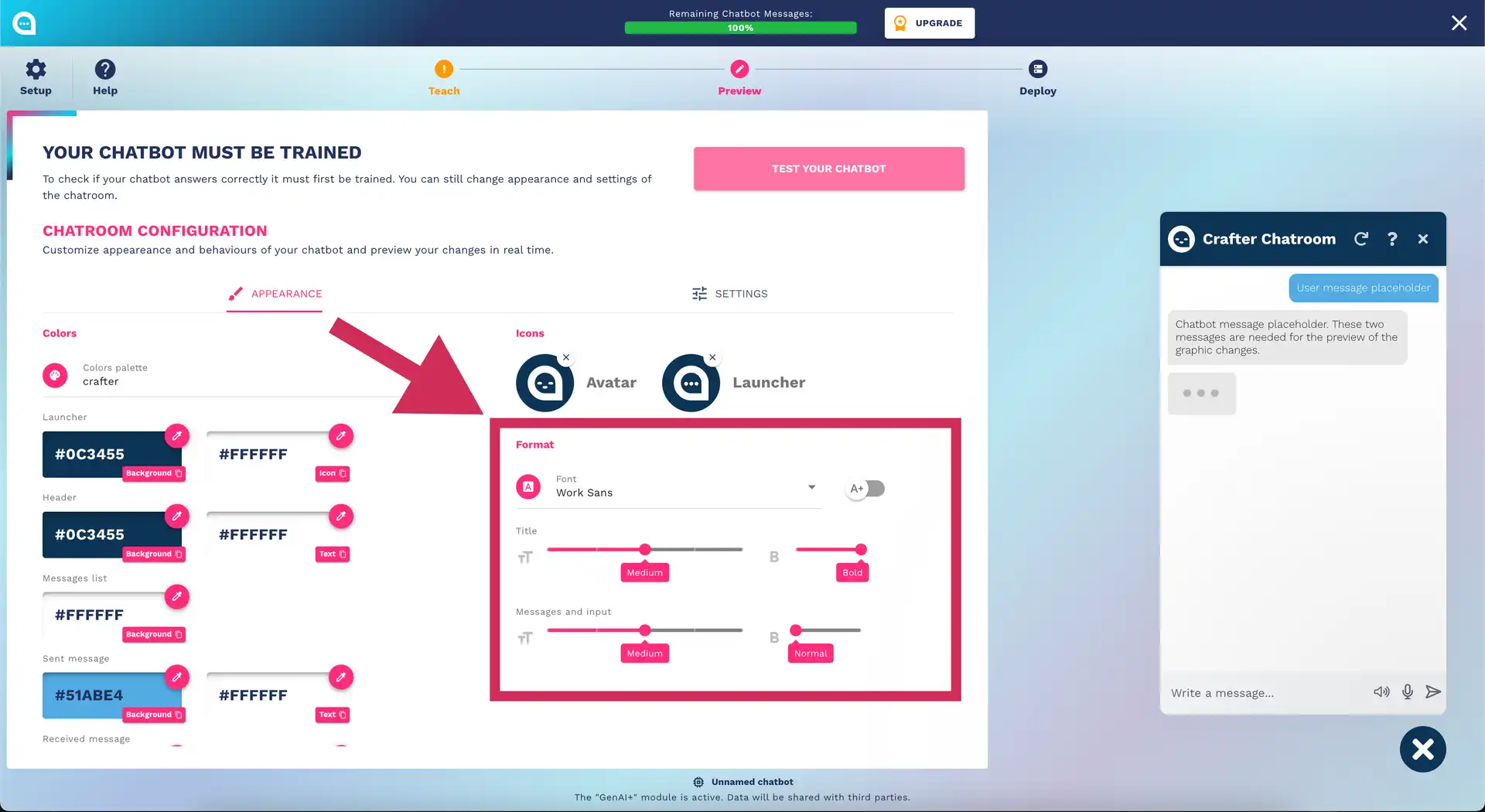
Available Fonts
Main categories:
📝 Sans-Serif (modern, clean):
   • Roboto, Open Sans, Lato, Montserrat

📖 Serif (elegant, traditional):
   • Playfair Display, Merriweather, Lora

⚡ Display (impactful, titles):
   • Oswald, Bebas Neue, Righteous
Typography Configuration
Customizable elements:
- Title Font: Font of the chatroom title
- Message Font: Font of the messages
- UI Font: Interface font (buttons, labels)
- Font Size: Text sizes (small, medium, large)
- Font Weight: Font thickness (light, normal, bold)
Best Typography Practices:
- Readability: Priority number 1
- Hierarchy: Use different sizes for importance
- Consistency: Max 2-3 different fonts
- Mobile-First: Test on small devices
Layout and Structure
Chatroom Sizes
Available options:
📱 Compact: 350x500px (mobile-optimized)
📋 Standard: 400x600px (balanced)
📺 Extended: 500x700px (desktop-focused)
🎯 Custom: Custom sizes
Widget Positioning
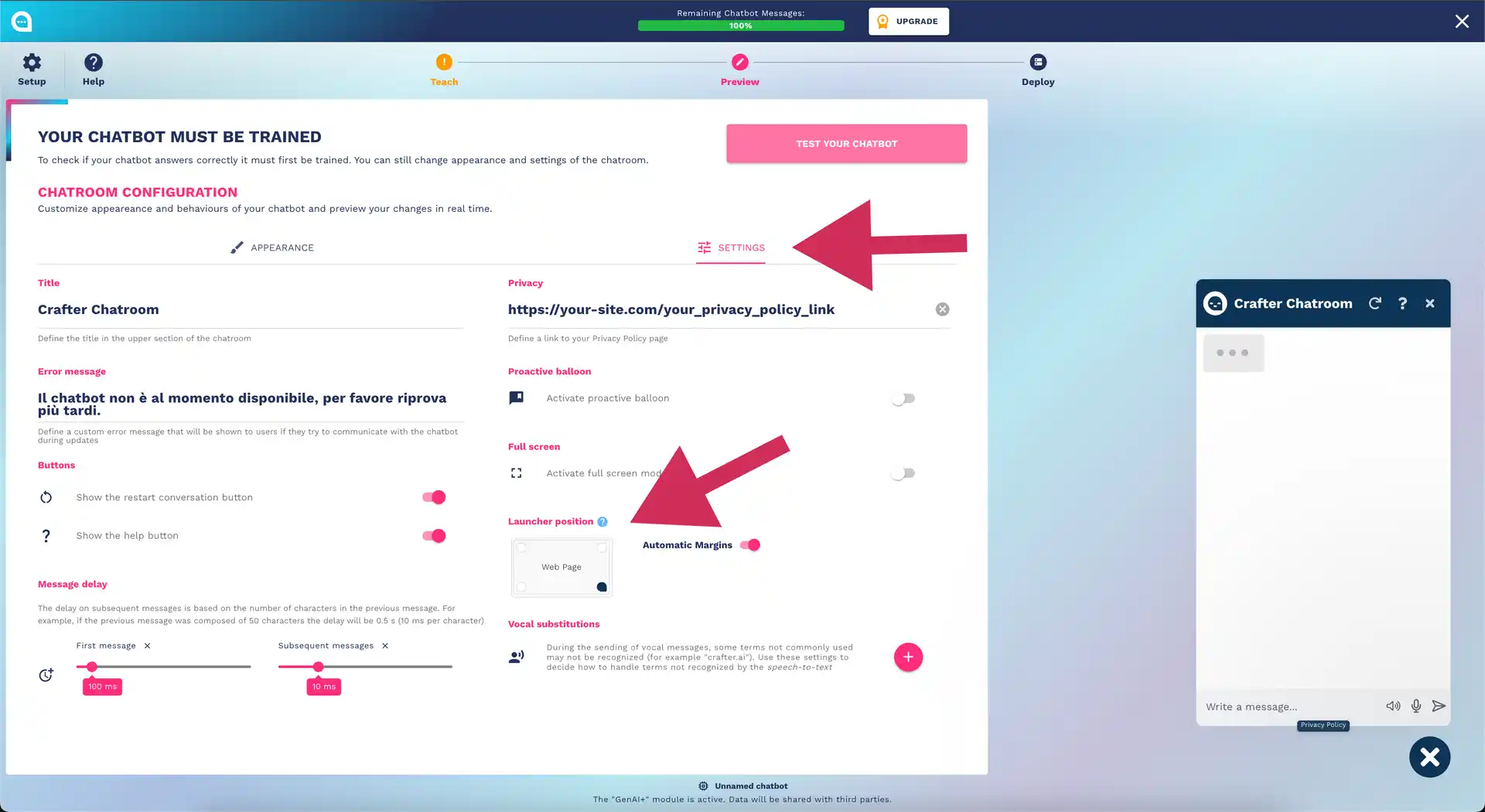
Positioning options:
📍 Bottom Right: Classic (recommended)
📍 Bottom Left: Alternative
📍 Top Right: For specific sites
📍 Custom Position: Full control
📍 Fullscreen: Immersive experience
Margin and Spacing
Distance customization:
- Margin from edges: 20px, 30px, 50px
- Internal padding: tight, normal, spacious
- Message spacing: compact, normal, airy
Icons and Avatar
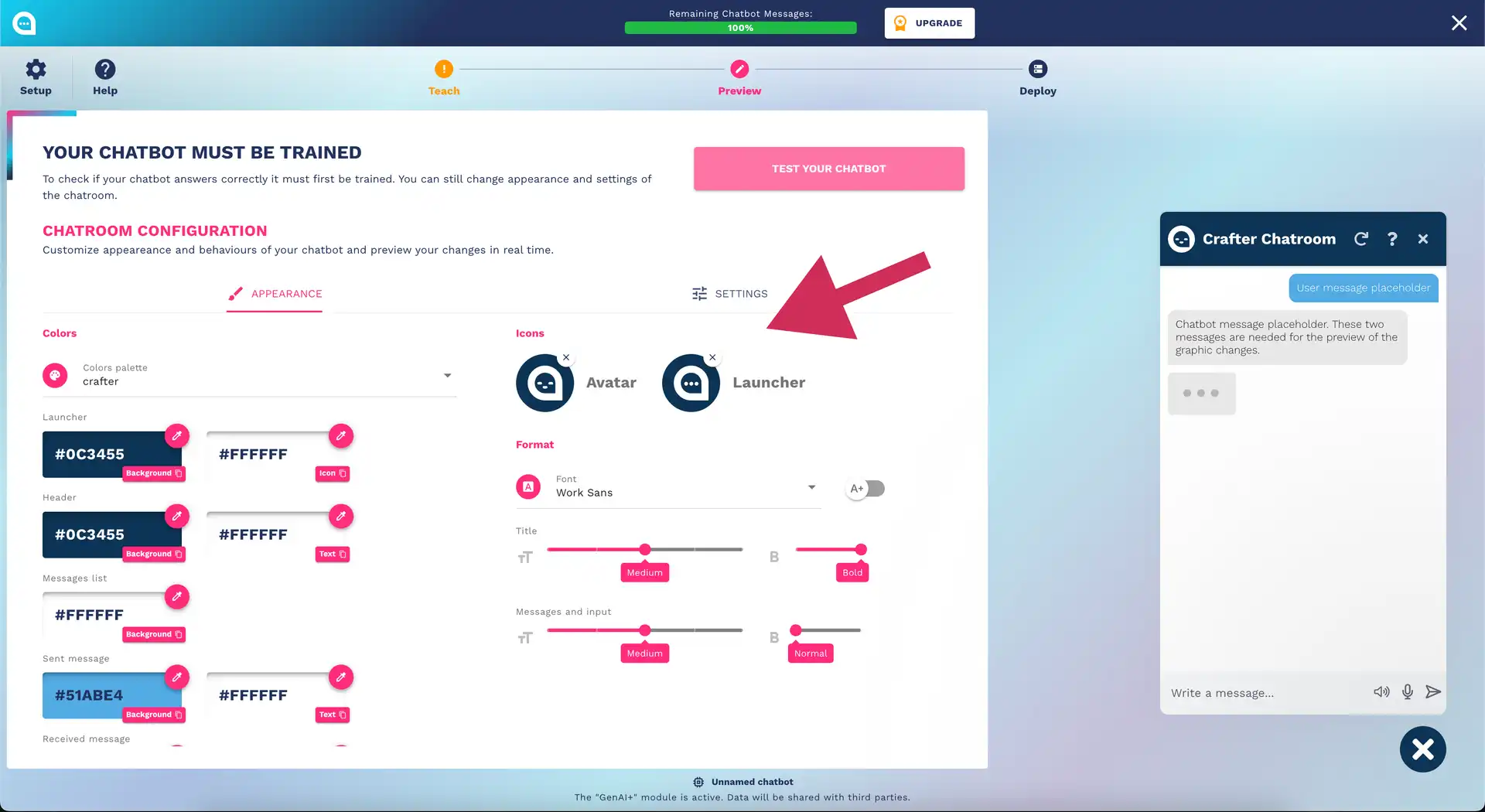
Bot Avatar
Available options:
- Default Icons: Set of predefined icons
- Custom Upload: Upload your logo/avatar (PNG, JPG, SVG)
- Initials: Use initials of the bot's name
- Brand Icon: Use brand icon
Technical specifications for avatar:
- Format: PNG, JPG, SVG
- Size: Minimum 64x64px, recommended 256x256px
- Weight: Max 500KB
- Style: Automatic circular
Icon Set
Elements with customizable icons:
💬 Chat Launcher: Chat opening icon
📎 Attachment: Attachment icon
🔄 Restart: Restart conversation icon
❓ Help: Help icon
📞 Human Handover: Operator transfer icon
Real-Time Preview
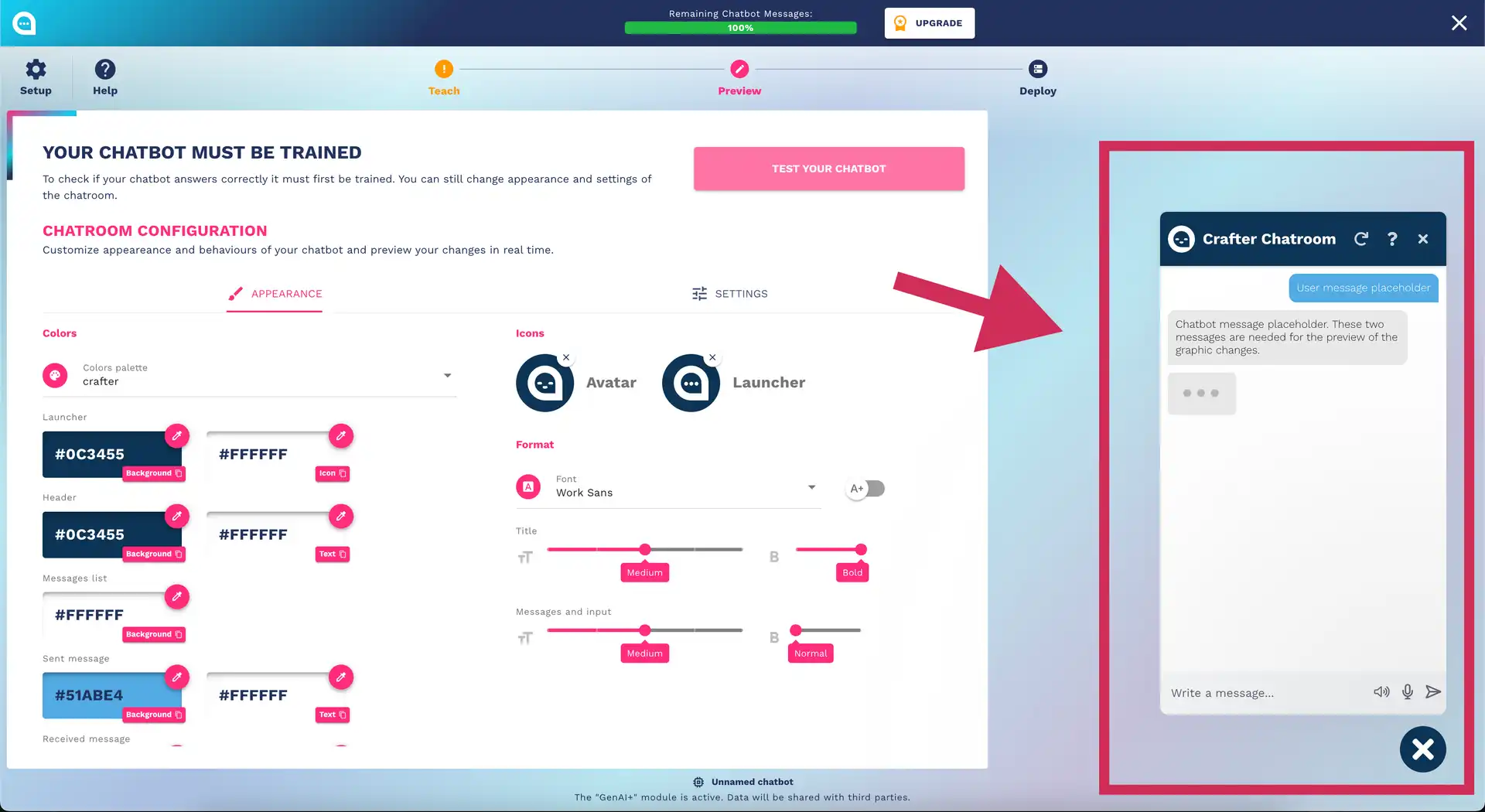
Live Preview
Every change is immediately reflected in the preview widget:
- Color changes → Instant update
- Font modification → Immediate rendering
- New icon → Direct display
Multi-Device Preview
Device simulation:
💻 Desktop: Standard view 1920x1080
📱 Mobile: iPhone/Android simulation
📱 Tablet: iPad simulation
🖥️ Large Screen: 4K+ simulation
Responsive Testing
Automatic breakpoints:
- Mobile: < 768px
- Tablet: 768px - 1024px
- Desktop: > 1024px
⚙️ Behavior Configuration (Settings)
Settings Tab
Configuration of Titles and Messages
Chatroom Title
Best Practices:
✅ Good examples:
• "Customer Assistant"
• "Hi! How can I help you?"
• "TechnoShop Support"

❌ Examples to avoid:
• "Bot" (too generic)
• "Chatbot AI Assistant Bot" (redundant)
• Titles too long (>30 characters)
Custom Error Message
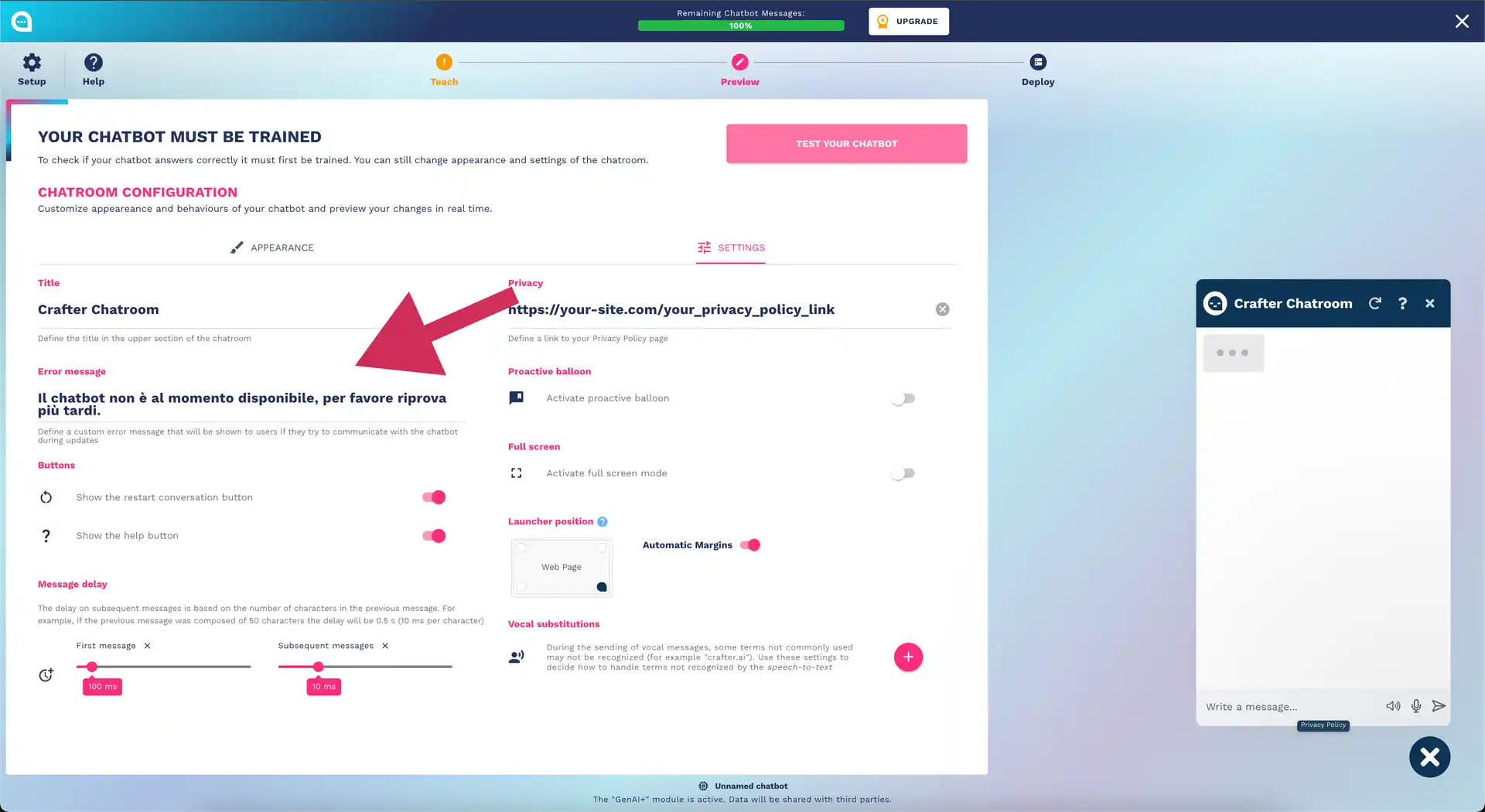
When displayed:
- During chatbot updates
- Connection issues
- Server maintenance
Example message:
"Our assistant is temporarily unavailable.
For immediate assistance, write to support@yourdomain.com
or call the toll-free number 800-123-456."
Button Configuration
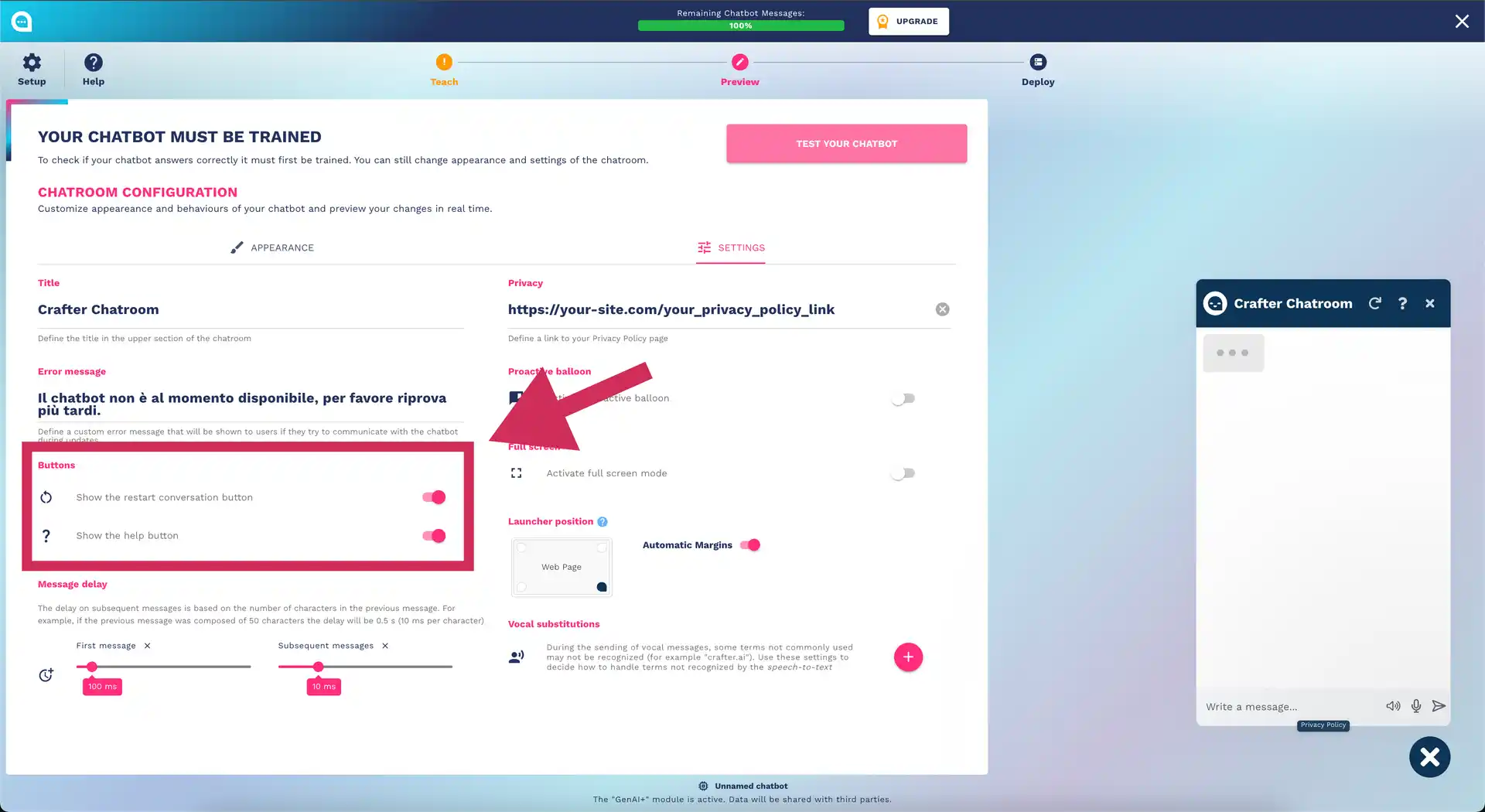
Restart Button
Functionality: Allows the user to restart the conversation When to show it:
- ✅ Complex chatbots with many workflows
- ✅ E-commerce with purchasing paths
- ❌ Simple FAQs where it's not needed
Help Button
Functionality: Shows help or guide information Customizable help content:
"You can ask me:
• Product information
• Order status
• Technical support
• Contacts and hours

Type 'operator' to speak with a person."
Timing and Delay Management
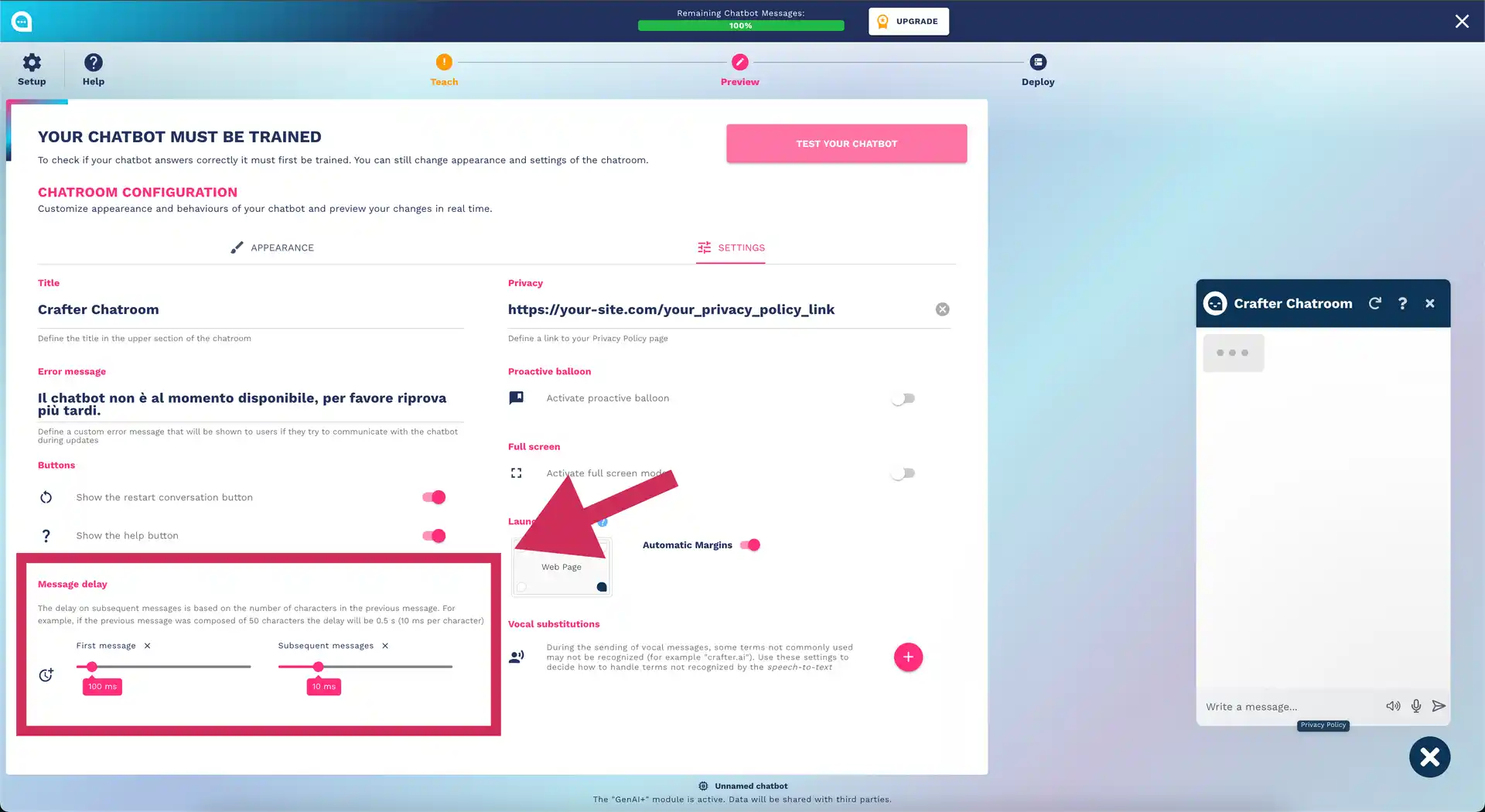
Bot Message Delay
Simulating human typing:
⚡ Fast: 10ms per character
⚖️ Normal: 20ms per character (recommended)
🐌 Slow: 40ms per character
Automatic calculation:
- 50 character message + 20ms = 1 second delay
- 100 character message + 20ms = 2 seconds delay
First Message Delay
Time before the initial greeting:
- Immediate: 0ms
- Fast: 500ms
- Normal: 1000ms (recommended)
- Slow: 2000ms
Best Timing Practices:
- Not too fast: Sounds robotic
- Not too slow: User loses interest
- Consistent: Same delay for similar messages
Privacy and Compliance
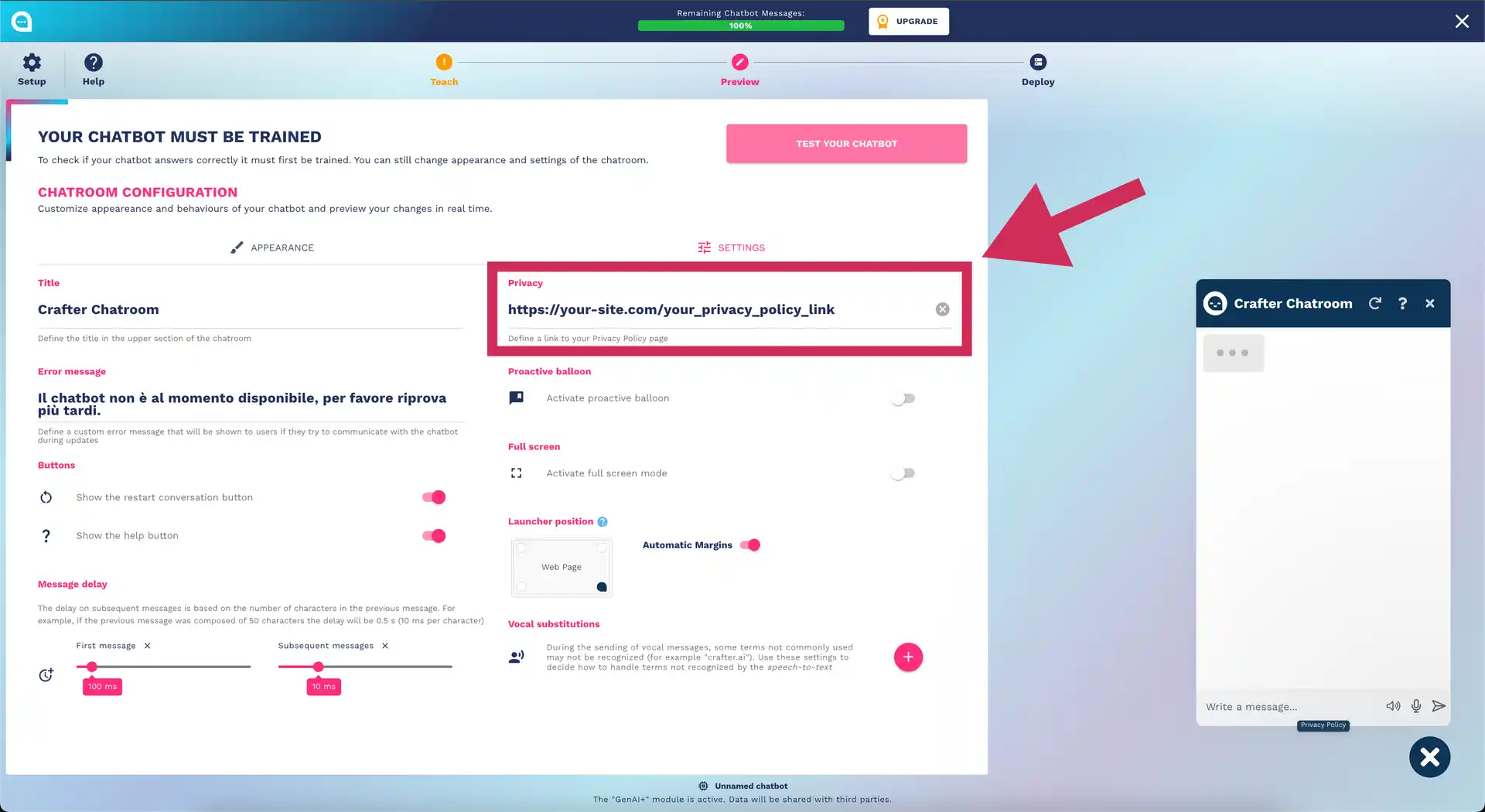
Privacy Policy Link
Configuration:
- Complete privacy policy URL
- Automatic URL format validation
- Link opens in a new window
Placement:
- Footer of the chatroom
- Before data collection
- In the welcome message
Cookie Consent and GDPR
Available options:
🍪 Cookie Consent: Automatic banner
📋 Data Collection Notice: Data collection notice
🔒 Privacy Badge: Visible privacy badge
✅ Explicit Consent: Explicit consent before chat
Advanced Configurations
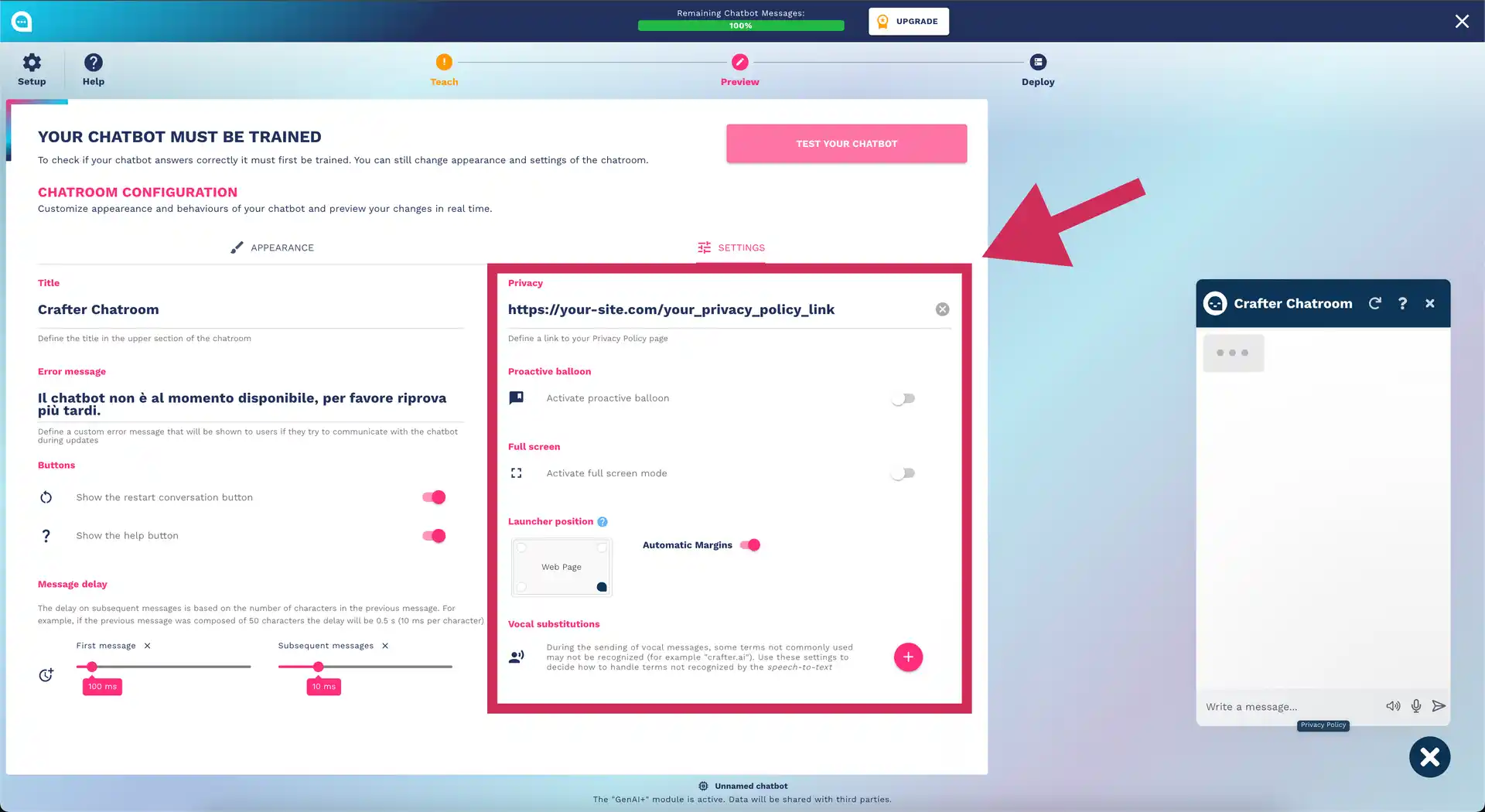
Fullscreen Mode
When to use it:
- Complex chatbots with a lot of content
- Dedicated support applications
- Immersive experiences
Configuration:
- Automatic trigger after N messages
- Dedicated button
- Responsive breakpoint
Auto-Minimization
Automatic behavior:
⏱️ Inactivity Timeout:
• 1 minute → Minimize alert
• 5 minutes → Auto-minimize
• 15 minutes → Reset conversation

📱 Mobile Behavior:
• Auto-minimize on scroll
• Reopen on tap area
• Preserve conversation state
📱 Responsive Design and Mobile
Mobile Optimization
Mobile-First Design
Key principles:
- Touch-friendly buttons (min 44x44px)
- Readability without zoom
- Easy scrolling through conversation
- Optimized keyboard input
Automatic Breakpoints
/* Mobile Small */
@media (max-width: 480px) {
  chatroom-width: 95vw;
  font-size: 14px;
}

/* Mobile Standard */
@media (max-width: 768px) {
  chatroom-width: 90vw;
  font-size: 16px;
}

/* Tablet */
@media (max-width: 1024px) {
  chatroom-width: 400px;
  font-size: 16px;
}
Mobile Performance
Automatic optimizations:
- Lazy loading images
- Automatic avatar compression
- Local conversation caching
- Minimal data usage
🔍 Pre-Deploy Validation
Complete Testing Checklist
Functionality Testing
- All greetings work
- Main Q&A respond correctly
- Complex flows complete without errors
- Handover to human works
- Lead collection collects data correctly
- API integrations active
Design Testing
- Brand colors applied correctly
- Fonts readable on all devices
- Avatar/icons uploaded and visible
- Responsive layout on mobile/tablet/desktop
- Accessibility contrast verified
Behavior Testing
- Message timing natural
- Help/restart buttons work
- Privacy policy link correct
- Auto-minimize behavior appropriate
- Fullscreen mode (if active) functional
Cross-Browser Testing
- Chrome (latest)
- Firefox (latest)
- Safari (latest)
- Edge (latest)
- Major mobile browsers
Validation Tools
Accessibility Testing
Recommended tools:
- WAVE Web Accessibility Evaluator
- axe DevTools
- Lighthouse Accessibility Audit
Performance Testing
Metrics to monitor:
⚡ Load Time: < 3 seconds
📊 First Contentful Paint: < 1.5 seconds
🎯 Cumulative Layout Shift: < 0.1
📱 Mobile PageSpeed: > 90
Device Testing
Minimum devices to test:
- iPhone (latest + 2 previous versions)
- Android Samsung/Google (flagship)
- iPad (standard + mini)
- Desktop Chrome/Firefox/Safari
🎯 Best Customization Practices
Design Guidelines
Brand Consistency
- Use brand colors: Maintain visual consistency
- Aligned typography: Fonts consistent with the website
- Tone of voice: Language consistent with the brand
- Visual elements: Icons and style aligned
User Experience
- Clarity over Creativity: Functionality before aesthetics
- Accessibility First: Inclusive design
- Mobile Optimization: Most users are mobile
- Performance: Speed is crucial for engagement
Content Strategy
- Microcopy: Every text matters
- Error Messages: Helpful and friendly error messages
- Help Content: Clear guidance for users
- Call-to-Actions: Clear and actionable CTAs
Testing Strategy
Iterative Testing
1. Basic Functionality → 2. Design Validation → 3. User Testing → 4. Performance → 5. Deploy
                                    ↓
                              Continuous Optimization
User Feedback Integration
Methods for collecting feedback:
- Post-chat satisfaction survey
- A/B testing different versions
- User behavior analytics
- Direct feedback from internal team
✅ Complete Pre-Deploy Checklist
Technical Validation
- Chatbot training completed and updated
- All functional tests passed
- Performance below required thresholds
- Cross-browser compatibility verified
- Mobile responsiveness validated
Design Validation
- Brand colors applied and verified
- Typography optimized for readability
- Icons/avatar uploaded correctly
- Professional and user-friendly layout
- Accessibility standards met
Content Validation
- All messages reviewed for tone of voice
- Error messages configured and tested
- Help content complete and clear
- Privacy policy link functional
- Legal compliance verified
Business Validation
- Stakeholder approval obtained
- Team training completed
- Support team informed about new features
- Monitoring and analytics configured
- Rollback plan prepared
🔗 Next Steps
After completing Preview and Testing:
- [Deploy the Chatbot]
- [Monitoring Setup]
- [Team Training]
⏱️ Estimated time for complete customization: 2-4 hours
🎯 Goal: Chatbot perfectly integrated into the brand and optimized for user experience