
Chatbot Deploy Step
🚀 Deployment and Maintenance - Crafter.ai This comprehensive guide will walk you through the process of publishing your chatbot and managing it over time,...
🚀 Deployment and Maintenance - Crafter.ai
This comprehensive guide will walk you through the process of publishing your chatbot and managing it over time, including updates, maintenance, and monitoring.
🎯 Overview of the Deploy Step
The Deploy step is the final phase where:
- 🔧 You verify the prerequisites for publication
- 🚀 You publish the chatbot on production servers
- 🔗 You obtain the code for integration into the site
- 🔄 You manage updates and maintenance
✅ Prerequisites for Deployment
Mandatory Technical Checks
1. Training Completed
✅ Status: "Trained"
✅ Knowledge Base: Populated and processed
✅ Q&A Base: Minimum 10 active Q&As
✅ Survey: 100% completed
2. Active and Valid Plan
✅ Subscription: Active and not expired
✅ Message Limit: Not reached (< 100% usage)
✅ Payment Status: Updated
✅ Team License: Valid for deployment
3. Complete Configuration
✅ Bot Info: Name and description set
✅ Features: Functionality configured
✅ Appearance: Customization completed
✅ Settings: Behaviors configured
Possible Pre-Deploy States
🟢 Ready to Deploy
All prerequisites are met
- "Deploy" button active
- Process can start immediately
- Estimated time: 3-8 minutes
🟡 Needs Update (Outdated)
Existing chatbot but modified
- Changes to the knowledge base
- Updates to Q&As
- New chatroom configurations
- Action: Click "Update Bot"
🔴 Cannot Deploy
Prerequisites not met
Possible causes and solutions:
📚 Incomplete Survey
Error: "Incomplete survey"
Solution:
1. Go to the Teaching Step
2. Complete all survey questions
3. Save and return to Deploy
🎓 Bot Not Trained
Error: "The chatbot is not trained"
Solution:
1. Go to the Teaching Step
2. Click "Train Bot"
3. Wait for completion
4. Return to Deploy
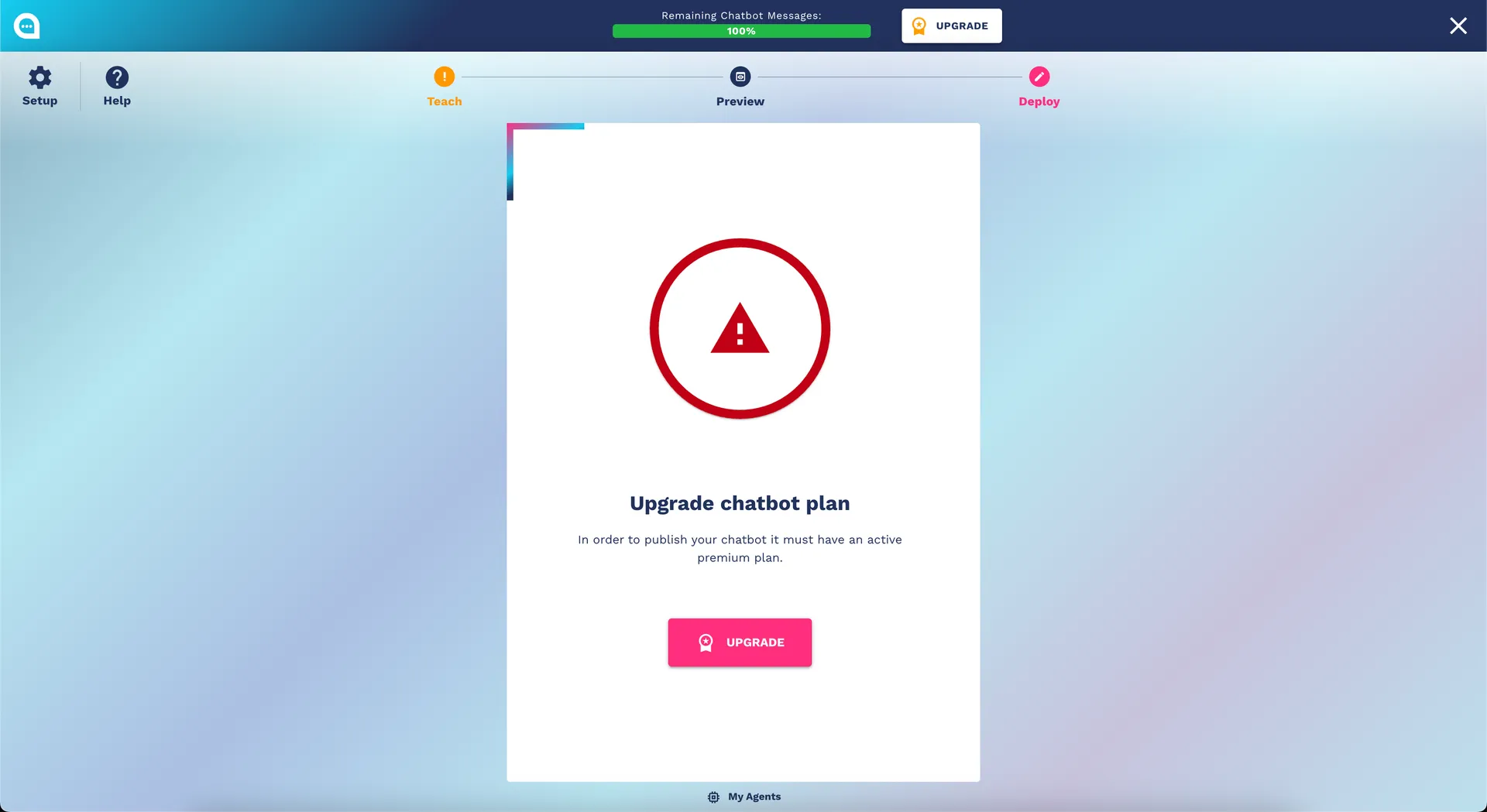
💳 Plan Issues
Error: "Upgrade chatbot plan"
Solution:
1. Check active plan
2. Check message limits
3. Update payment if necessary
4. Contact team administrator
⚠️ Message Limit Reached
Error: "Message usage limit reached"
Solution:
1. Upgrade current plan
2. Swap to available license
3. Wait for monthly counter reset
🚀 Deployment Process
Deploying a New Chatbot
Step 1: Start Deployment
- Verify prerequisites: All checks must be ✅
- Click "Deploy Chatbot": Start the process
- Confirm action: The process is not reversible during execution
Step 2: Deployment Phases
The system automatically performs these operations:
🔄 Starting Server (30-60 seconds)
   ├── Allocating server resources
   ├── Configuring environment
   └── Initializing services

🔄 Loading Knowledge Base (1-3 minutes)
   ├── Uploading knowledge base
   ├── Indexing content
   └── Optimizing search

🔄 Update Models (2-4 minutes)
   ├── Loading AI models
   ├── Configuring NLP pipeline
   └── Automatic testing

✅ Deploy Completed!
Estimated total time: 3-8 minutes depending on the size of the knowledge base
Step 3: Completion
At the end, you will receive:
- ✅ Confirmation of deployment completed
- 🔗 Integration code for the website
- 🌐 Demo page URL for testing
- 📊 Analytics dashboard link
Update of an Existing Chatbot
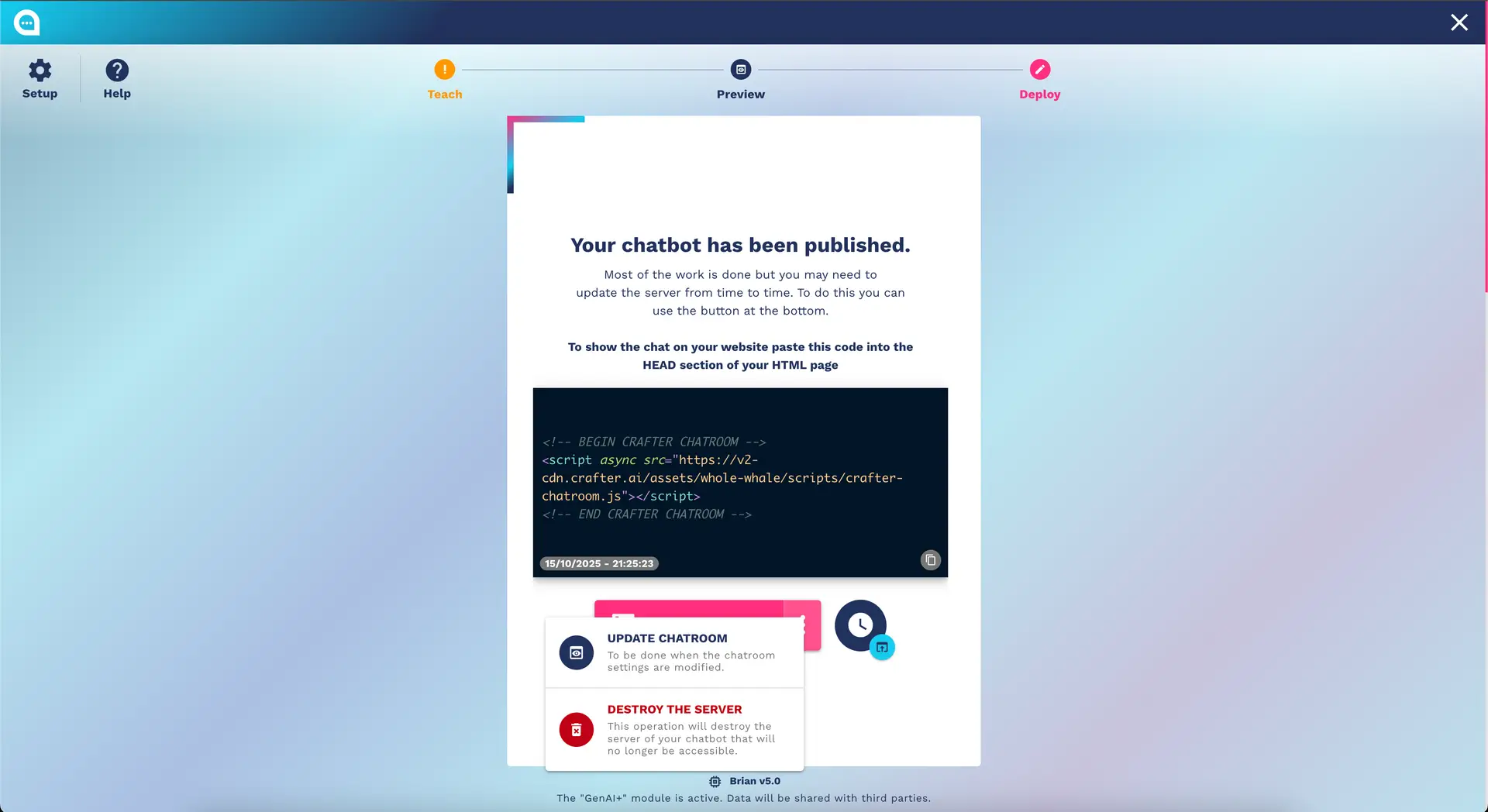
When an Update is Necessary
Update Models (after changes to the knowledge base):
- New Q&As added
- Changes to existing Q&As
- Upload new documents
- Changes to the survey
Update Chatroom (after UI changes):
- Change of colors or fonts
- New settings configurations
- Changes to system messages
- Updates to privacy policy
Types of Updates
Quick Update (Chatroom Only)
Time: 30-90 seconds
Includes:
├── Updating appearance
├── New UI settings
└── Chatroom configurations
Complete Update (Models + Chatroom)
Time: 2-5 minutes
Includes:
├── Retraining AI models
├── Updating knowledge base
├── New Q&As and content
└── All UI changes
Update with Server Restart
Time: 3-8 minutes
Includes:
├── Complete server restart
├── System version update
├── Architectural changes
└── Major configuration updates
🔗 Integration into the Website
Integration Code
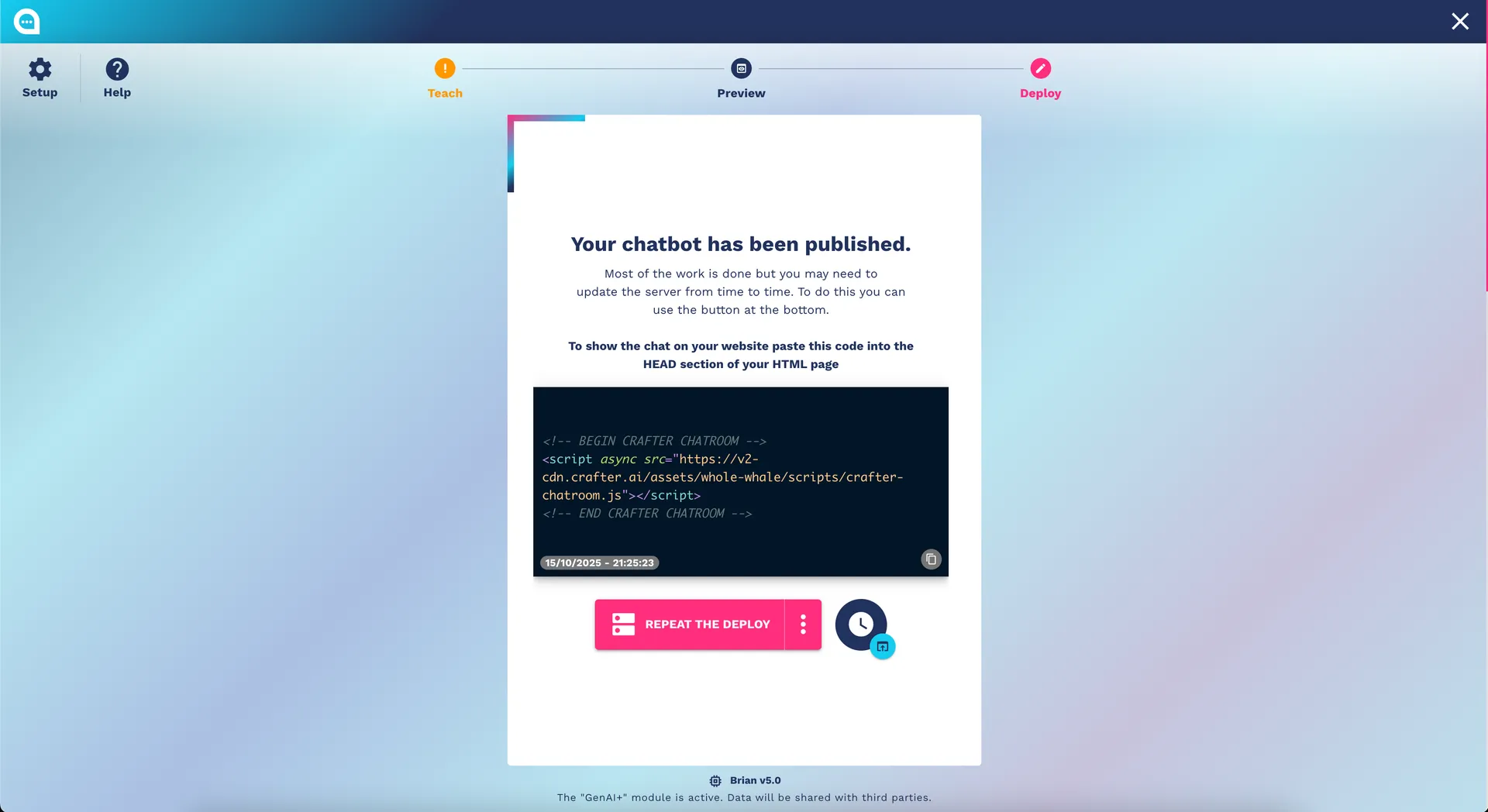
Standard Code
At the end of the deployment, you will receive code similar to this:
        <!-- BEGIN CRAFTER CHATROOM -->
        <script async src="YOUR_LINK"></script>
        <!-- END CRAFTER CHATROOM -->
Where to Insert the Code
✅ Correct Placement:
<!DOCTYPE html>
<html>
<head>
    <meta charset="UTF-8">
    <title>Your Site</title>

    <!-- Other head tags -->

    <!-- INSERT CHATBOT CODE HERE -->
    <script>/* Crafter.ai Code */</script>

</head>
<body>
    <!-- Page content -->
</body>
</html>
❌ Incorrect Placements:
- In the
<body>→ May cause loading delays - After other scripts → Possible conflicts
- In external JS files → Timing issues
Integration Troubleshooting
Widget Not Appearing
Possible causes:
🔍 Check 1: Browser Console
   → Open Developer Tools (F12)
   → Look for JavaScript errors
   → Verify script loading

🔍 Check 2: Network tab
   → Verify download of bundle.js
   → Check response status (should be 200)
   → Ensure no CORS blocks

🔍 Check 3: Bot Status
   → Go to the Crafter.ai dashboard
   → Verify status = "Deployed"
   → Check last successful deploy
Common solutions:
🔧 CORS Error:
   → Verify authorized domain in dashboard
   → Add domain in bot settings

🔧 Script Blocked:
   → Check ad-blocker
   → Verify Content Security Policy
   → Whitelist cdn.crafter.ai

🔧 Incorrect Bot ID:
   → Copy/paste bot ID from dashboard
   → Ensure no extra spaces
Widget Appears but Does Not Work
Debug steps:
1. Test on official demo page
2. Compare behavior
3. Check widget version (latest vs specific)
4. Test in incognito mode
5. Disable other extensions/scripts
📊 Monitoring and Analytics
Deployment Dashboard
Real-Time Server Status
🟢 Deployed: Server active and functioning
🟡 Updating: Update in progress
🔴 Offline: Server offline or error
🟠 Outdated: Needs update
Logs and Diagnostics
Accessing logs:
- Deployment Dashboard → "View Logs"
- Filter by date/time
- Levels: Info, Warning, Error
- Export for in-depth analysis
Advanced Analytics
Performance Metrics
📈 Success Rate: % of conversations successfully resolved
📈 User Satisfaction: Average user rating (1-5 stars)
📈 Average Session Duration: Average conversation duration
📈 Bounce Rate: % of users who leave immediately
📈 Conversion Rate: % of completed goals
Behavioral Analytics
🔍 Most Asked Questions: Most frequent questions
🔍 Unresolved Queries: Questions without answers
🔍 User Flow Paths: Common conversation paths
🔍 Drop-off Points: Where users abandon
🔍 Peak Usage Times: Times of highest usage
Automated Reports
Configuring reports:
- Frequency: Daily, weekly, monthly
- Recipients: Team members via email
- Format: PDF executive summary or detailed Excel
- Custom metrics: Choose relevant KPIs
Alerting and Notifications
Automatic Alerts
⚠️ Downtime Alert: Server offline > 2 minutes
⚠️ High Error Rate: > 10% errors in 1 hour
⚠️ Low Success Rate: < 70% conversations resolved
⚠️ Usage Spike: Traffic > 300% normal
⚠️ Storage Limit: Knowledge base > 90% limit
Notification Channels
- Email: Immediate alerts via email
- Slack/Teams: Integration with corporate chat
- Webhook: Custom system integration
- SMS: Critical alerts (optional)
🔄 Managing Updates
Update Scheduling
Recommended Update Cycle
📅 Routine Updates:
├── Daily: Review new conversations
├── Weekly: Analyze misses and improvements
├── Monthly: Review performance and optimizations
└── Quarterly: Strategic review of knowledge base

🔄 Reactive Updates:
├── Immediate: Critical errors or incorrect information
├── Within 24h: New FAQs or frequent questions
├── Within a week: Significant UX improvements
└── On request: New business features
Best Practice Timing
Recommended times for updates:
- 🌙 Night hours: 02:00-05:00 (low traffic)
- 📅 Weekend: Saturday evening or Sunday morning
- 🚫 Avoid: Peak hours, promotional days
Hotfix Deployment
For urgent fixes:
1. Identify critical problem
2. Quick fix and essential testing
3. Immediate deployment with intensive monitoring
4. Communication with team and stakeholders
5. Post-mortem and lessons learned
🛠️ Preventive Maintenance
Maintenance Routines
Daily Checks (5-10 minutes)
✅ Server Status: Check uptime and performance
✅ Error Logs: Review errors from the last 24h
✅ New Conversations: Analyze new conversations
✅ Usage Metrics: Check resource usage
Weekly Checks (30-45 minutes)
📊 Analytics Review: Weekly performance analysis
🔍 Misses Analysis: Review unanswered questions
🔧 Knowledge Base Update: Content update
📱 User Feedback: Review ratings and comments
🧪 Regression Testing: Test critical functionalities
Monthly Checks (2-3 hours)
📈 Performance Report: Complete monthly report
🗂️ Knowledge Base Cleanup: Remove obsolete content
🔄 Workflow Optimization: Optimize complex flows
👥 Team Training: Update team on new features
💾 Backup Verification: Verify backups and recovery
Quarterly Checks (Half a day)
🎯 Strategic Review: Align business objectives
🔍 Comprehensive Audit: Complete system audit
🔧 Infrastructure Review: Review architecture and scalability
📚 Training Data Review: Clean and optimize data
🛡️ Security Audit: Review security and compliance
Performance Optimization
Monitoring Key KPIs
🎯 Target Performance:
├── Response Time: < 2 seconds
├── Uptime: > 99.5%
├── Success Rate: > 85%
├── User Satisfaction: > 4.0/5.0
└── Error Rate: < 5%
Common Optimizations
⚡ Knowledge Base:
├── Removal of duplicates
├── Consolidation of similar Q&As
├── Optimization of indexing
└── Cleaning of obsolete content

🚀 Server Performance:
├── Cache optimization
├── Database query optimization
├── CDN configuration
└── Resource scaling
📋 Common Troubleshooting
Deployment Issues
Deployment Fails
Error: "Deploy failed - server error"
Solutions:
1. Retry after 5-10 minutes
2. Check system status (status.crafter.ai)
3. Ensure plan limits are not exceeded
4. Contact support with error logs
Deployment Very Slow
Problem: Deployment takes > 15 minutes
Possible causes:
├── Very large knowledge base (> 100MB)
├── Many Q&As (> 500)
├── Temporary server overload
└── Network issues

Solutions:
├── Optimize knowledge base
├── Split deployment into multiple phases
├── Retry during low traffic hours
└── Check internet connection
Post-Deployment Issues
Chatbot Not Responding
Debug checklist:
1. Verify bot status = "Deployed"
2. Test on official demo page
3. Check integration code is correct
4. Verify authorized domain
5. Check browser console for errors
Incorrect Responses
Analysis:
1. Review conversation logs
2. Identify common error patterns
3. Verify knowledge base is updated
4. Check training completed correctly
5. Analyze Q&A conflicts
Degraded Performance
Investigation:
1. Monitor resource usage
2. Analyze response times
3. Verify database performance
4. Check concurrent user limits
5. Review error rate trends
✅ Deployment and Maintenance Checklist
Pre-Deployment Checklist
- All prerequisites verified
- Complete testing performed
- Team notified of deployment
- Backup configuration saved
- Rollback plan prepared
- Monitoring configured
Post-Deployment Checklist
- Deployment completed successfully
- Integration code implemented
- Widget functioning correctly
- Analytics active and configured
- Team training completed
- Documentation updated
Maintenance Checklist
- Routine checks implemented
- Alerts and notifications configured
- Performance baseline established
- Backup and recovery tested
- Team responsibilities assigned
- Escalation procedures defined
🔗 Next Steps
After successful deployment:
- [Analytics and Optimization]
- [Team Training]
- [Advanced Features]
⏱️ Estimated first deployment time: 15-30 minutes (including integration) 🎯 Objective: Live, stable, and monitored chatbot in production